
Offering discount coupons is a proven way to reward loyal customers and drive sales. But what if you want to go the other way — requiring a coupon code before a customer can purchase a specific product? This is useful for member-only deals, exclusive promotions, or products that should only be available through a specific campaign link.
In this tutorial, we’ll cover three different approaches: requiring a coupon for a specific product, requiring a coupon for all products in a category, and creating a coupon input shortcode you can place anywhere on your site.
Before You Start
Make sure you’ve done the following before adding any code:
1. Take a full backup of your site (files and database).
2. Make sure you have FTP access or access to your hosting control panel’s file manager.
3. Enable coupons in WooCommerce by going to WooCommerce → Settings → General and checking the “Enable coupons” option.4. Use a child theme so your changes survive theme updates.
Method 1: Require Coupon for a Specific Product
If you have a specific product that should only be purchasable with a valid coupon code, add the following snippet to your child theme’s functions.php file. You’ll need to know the product ID and the coupon code:
add_action( 'woocommerce_check_cart_items',
  'mandatory_coupon_for_specific_items' );

function mandatory_coupon_for_specific_items() {
  // The targeted product IDs
  $targeted_ids = array( 37 );
  // The required coupon code
  $coupon_code = 'summer2';

  $coupon_applied = in_array(
    strtolower( $coupon_code ),
    WC()->cart->get_applied_coupons()
  );

  // Loop through cart items
  foreach( WC()->cart->get_cart() as $cart_item ) {
    if( in_array( $cart_item['product_id'],
        $targeted_ids ) && ! $coupon_applied ) {
      wc_clear_notices();
      wc_add_notice( sprintf(
        'The product "%s" requires a coupon',
        $cart_item['data']->get_name()
      ), 'error' );
      break;
    }
  }
}
Customize the code by replacing these values:
$targeted_ids = array( 37 ) — Replace 37 with your product’s ID. For multiple products, separate IDs with commas: array( 37, 12, 99 )
$coupon_code = ‘summer2’ — Replace summer2 with your actual coupon code.
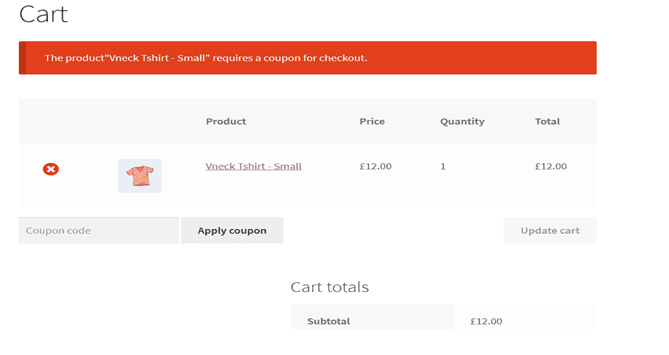
When a customer tries to checkout with this product in their cart and hasn’t applied the required coupon, they’ll see an error message like this:
Method 2: Require Coupon for All Products in a Category
If you want to require a coupon for every product within a specific category, use this modified version of the snippet:
add_action( 'woocommerce_check_cart_items',
  'mandatory_coupon_code' );

function mandatory_coupon_code() {
  // Category slug or ID
  $product_categories = array( 'clothing' );
  // The required coupon code
  $coupon_code = 'summer2';

  $coupon_applied = in_array(
    strtolower( $coupon_code ),
    WC()->cart->get_applied_coupons()
  );

  foreach( WC()->cart->get_cart() as $cart_item ) {
    if( has_term( $product_categories,
        'product_cat',
        $cart_item['product_id'] )
        && ! $coupon_applied ) {
      wc_clear_notices();
      wc_add_notice( sprintf(
        'The product "%s" requires a coupon',
        $cart_item['data']->get_name()
      ), 'error' );
      break;
    }
  }
}
Replace ‘clothing’ with the slug or ID of your target category. This works exactly the same way — if any product from that category is in the cart and the coupon hasn’t been applied, the checkout is blocked with an error notice.
Method 3: Display a Coupon Input Field Anywhere Using a Shortcode
Want to let customers apply a coupon code from any page on your site — not just the cart or checkout? You can create a shortcode that displays a coupon input field wherever you place it. Add the following to your functions.php:
add_shortcode( 'coupon_field', 'display_coupon_field' );

function display_coupon_field() {
  if( isset($_GET['coupon'])
      && isset($_GET['redeem-coupon']) ) {
    if( $coupon = esc_attr($_GET['coupon']) ) {
      $applied = WC()->cart->apply_coupon(
        $coupon
      );
    } else {
      $coupon = false;
    }

    $success = sprintf(
      __('Coupon "%s" applied successfully.'),
      $coupon
    );
    $error = __('This coupon can\'t be applied');

    $message = isset($applied) && $applied
      ? $success : $error;
  }

  $output = '<form method="get">';
  $output .= isset($coupon)
    ? '<p>' . $message . '</p>' : '';
  $output .= '<input type="text"
    name="coupon" placeholder="Coupon code">';
  $output .= '<button type="submit"
    name="redeem-coupon">Apply</button>';
  $output .= '</form>';

  return $output;
}
Once the code is added, you can display the coupon input field on any page, post, or widget by using the shortcode:
[coupon_field] When a customer enters a valid coupon code and clicks Apply, the discount will be applied to their cart immediately. If the coupon is invalid, they’ll see an error message.
Conclusion
Making a coupon mandatory for specific WooCommerce products or categories is a great way to run exclusive promotions, reward members, or control access to special-priced items. With the snippets in this tutorial, you can require a coupon for individual products, for entire categories, or even display a coupon input field anywhere on your site using a simple shortcode.
Just remember to add all code to a child theme’s functions.php and always test on a staging environment before pushing changes live.
Need help setting this up or customizing your WooCommerce store? Get in touch with our WordPress experts or check out our WordPress maintenance plans.