
Many WooCommerce store owners want to display the cart item count and total amount prominently — in the navigation bar, a header widget, or anywhere else on the page. This gives customers a quick summary of their purchase without needing to open the cart page.
While some WordPress themes include this feature built-in, many don’t. In this tutorial, we’ll show you how to add cart count and total display to your theme manually, including AJAX support so the numbers update in real time without a page reload.
Step 1: The Cart Display Code Snippet
The following code snippet generates a clickable link that shows the number of items in the cart and the total amount. You can place it anywhere in your theme’s template files:
<?php global $woocommerce; ?>

<a class="cart-contents"
  href="<?php echo wc_get_cart_url(); ?>"
  title="<?php _e('View your shopping cart',
    'woothemes'); ?>">
  <?php echo sprintf(
    _n('%d item', '%d items',
    WC()->cart->get_cart_contents_count(),
    'woothemes'),
    WC()->cart->get_cart_contents_count()
  ); ?> -
  <?php echo WC()->cart->get_cart_total(); ?>
</a>
This dynamically creates a link containing the item count and total, separated by a dash. The link points to the cart page so customers can click through to view their full cart.
Step 2: Add the Code to Your Theme’s Header
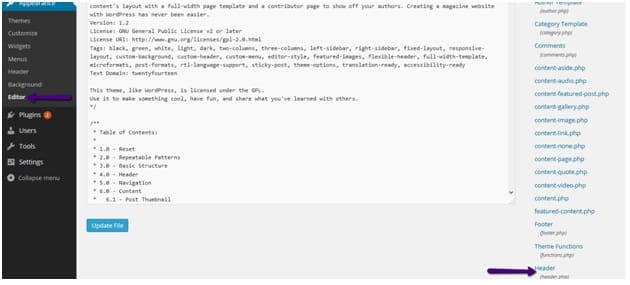
For this example, we’ll add the cart info just below the navigation menu by editing the header.php file. Go to Appearance → Editor and select header.php from the file list on the right:
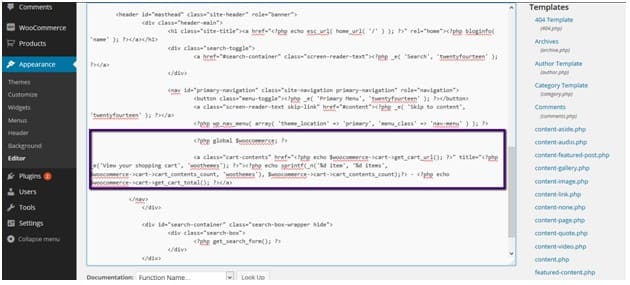
Insert the code snippet just after the navigation bar code (typically after the <?php wp_nav_menu line). Here’s what it looks like after inserting:
Step 3: View the Result
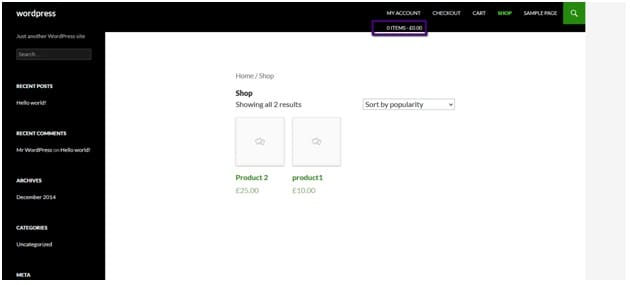
After saving the file and refreshing your page, you’ll see the cart count and total appear below the navigation menu. With an empty cart, it shows “0 items – £0.00”:
After adding a product to the cart, the numbers update to reflect the current cart contents:
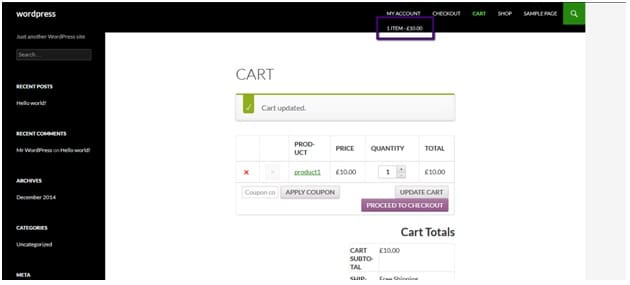
The AJAX Problem
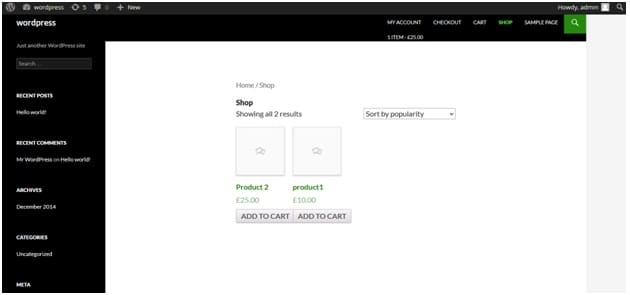
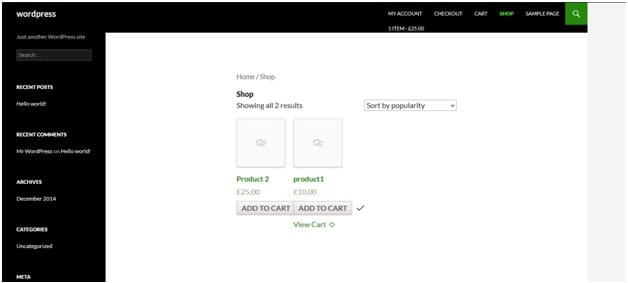
The code above works great when products are added via a standard page reload. However, WooCommerce uses AJAX to add products to the cart on archive pages — meaning the page doesn’t reload. When this happens, the cart count in the header won’t update until the next page load.
In the screenshots below, you can see a product was added via AJAX (the “View Cart” link appeared), but the header still shows the old count:
Step 4: Add AJAX Support With Cart Fragments
To fix this, add the following code to your child theme’s functions.php file. This uses WooCommerce’s cart fragment system to update the cart display in real time:
add_filter(
  'woocommerce_add_to_cart_fragments',
  'woocommerce_header_add_to_cart_fragment'
);

function woocommerce_header_add_to_cart_fragment(
  $fragments
) {
  ob_start();
  ?>
  <a class="cart-contents"
    href="<?php echo wc_get_cart_url(); ?>"
    title="<?php _e('View your shopping cart',
      'woothemes'); ?>">
    <?php echo sprintf(
      _n('%d item', '%d items',
      WC()->cart->get_cart_contents_count(),
      'woothemes'),
      WC()->cart->get_cart_contents_count()
    ); ?> -
    <?php echo WC()->cart->get_cart_total(); ?>
  </a>
  <?php
  $fragments['a.cart-contents'] = ob_get_clean();
  return $fragments;
}
After saving, the cart count and total will now update instantly whenever a product is added via AJAX:
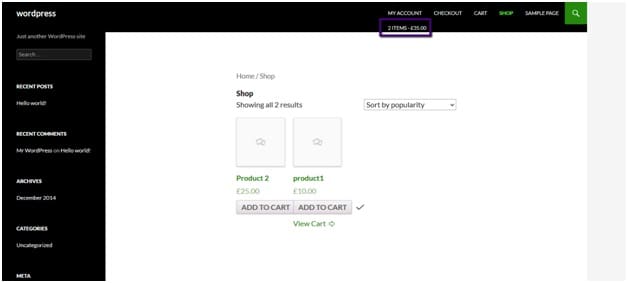
Conclusion
Displaying the cart item count and total in your WooCommerce header gives customers a constant summary of their purchase as they browse. With the addition of AJAX cart fragment support, the numbers stay accurate even when products are added without a page reload — creating a seamless, modern shopping experience.
Frequently Asked Questions
Can I place this anywhere other than the header?
Yes. The code snippet can be placed in any theme template file — header.php, footer.php, sidebar.php, or even a custom widget area. Just make sure the AJAX fragment function uses a matching CSS selector.
Will this work with any WooCommerce theme?
It works with any theme, but the exact placement in header.php will vary. Look for the wp_nav_menu function call in your theme’s header file and insert the code just after it.
Can I style the cart count and total?
Yes. The <a> tag has a class of cart-contents, so you can target it with CSS. Add styles to your theme’s stylesheet to change the font size, color, background, position, or any other visual property.
Why do I need two separate code blocks?
The first code block (in header.php) renders the initial display when the page loads. The second block (in functions.php) handles AJAX updates so the count refreshes without a page reload. Both use the same HTML structure and CSS class.