
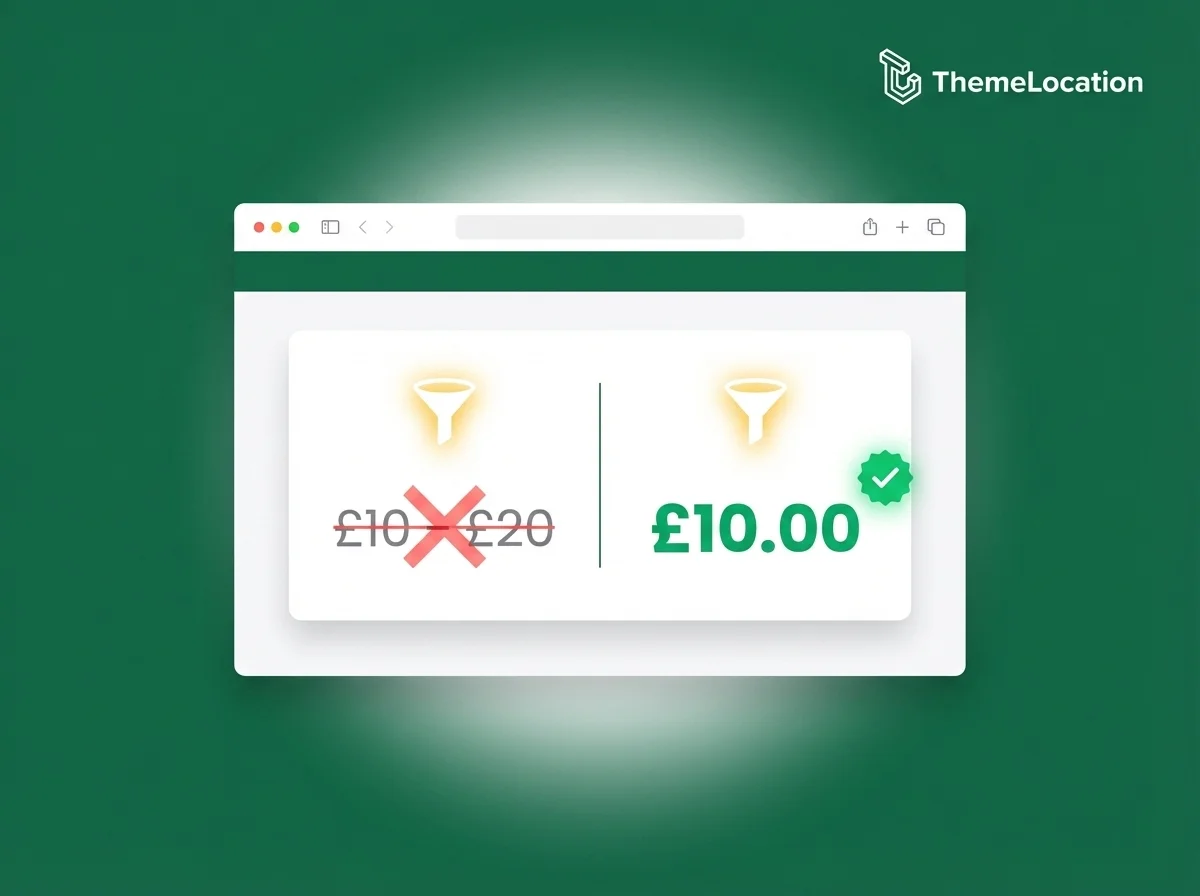
By default, WooCommerce displays a price range for variable products — something like £10.00 – £20.00 — showing the lowest and highest variation prices. For many stores this works fine, but some store owners prefer to show only the lowest (minimum) price instead.
This is a common client request. The reasoning makes sense: showing just the starting price (“From £10.00”) looks cleaner, reduces visual clutter, and can actually encourage more clicks since customers see the lowest possible price first.
In this tutorial, I’ll show you exactly how to replace the price range with the minimum price only — using a simple PHP filter.
The Default Behavior: Price Range Display
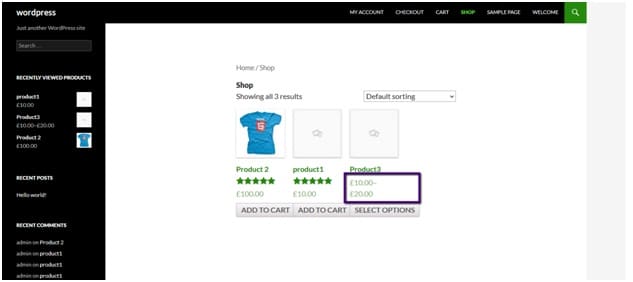
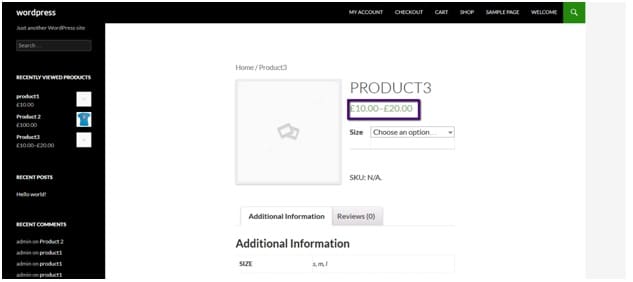
When you create a variable product with multiple variations at different price points, WooCommerce automatically shows a range on both the shop page and the single product page.
Step 1: Set Up Your Variable Product
If you haven’t already, create a variable product with attributes and variations. Go to Products > Add New, set the product type to Variable Product, and add your attributes under the Attributes tab.
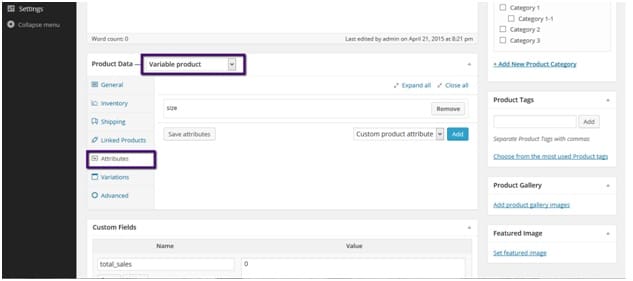
Then switch to the Variations tab and add your variations with individual prices.
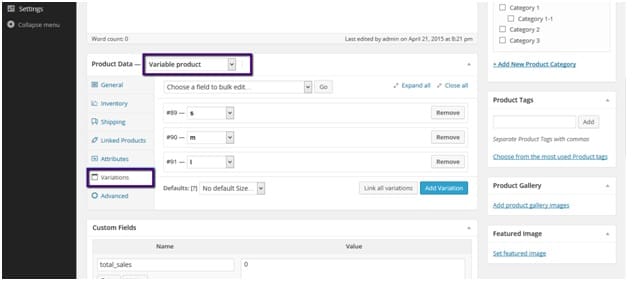
Save the product. On the front end, you’ll now see the full price range displayed — which is what we’re going to change.
Step 2: Add the Code to functions.php
Go to your WordPress dashboard and navigate to:
Appearance > Theme Editor > Theme Functions (functions.php)
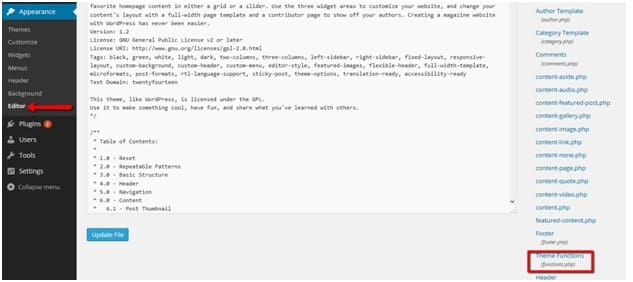
Scroll to the very end of the existing code and paste the following snippet, then click Update File:
add_filter( 'woocommerce_variable_price_html', 'custom_variation_price', 10, 2 );

function custom_variation_price( $price, $product ) {
    $price = wc_price( $product->get_variation_price( 'min', true ) );
    return $price;
}
Step 3: Check the Result
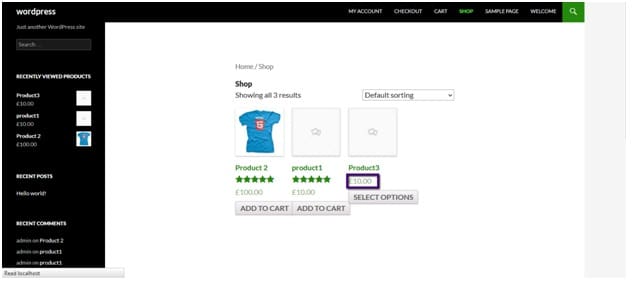
After saving the file, head back to your store’s front end. You’ll see the variable product now shows only the lowest price — instead of the full range.
On the shop page:
On the single product page:
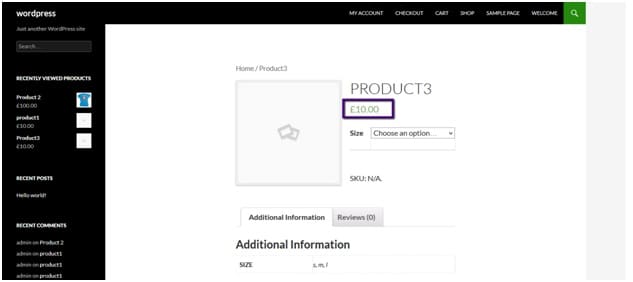
The price range (£10.00–£20.00) is now replaced with just the minimum price (£10.00).
Optional: Show “From” Before the Minimum Price
If you want to make it clear to customers that the displayed price is the starting price not the only price, you can add a “From” label before the amount:
add_filter( 'woocommerce_variable_price_html', 'custom_variation_price', 10, 2 );

function custom_variation_price( $price, $product ) {
    $min_price = wc_price( $product->get_variation_price( 'min', true ) );
    $price = sprintf( __( 'From %s', 'woocommerce' ), $min_price );
    return $price;
}
This will display “From £10.00” on both the shop page and the product page, which is a cleaner and more honest presentation for customers.
Conclusion
Displaying the minimum variation price instead of the full price range is a quick, clean customization that can make your product listings look more appealing and easier to scan — especially on busy shop pages with many variable products.
To recap:
- WooCommerce default shows a price range (min–max) for variable products
- A single PHP filter overrides this to display only the minimum price
- Add
"From"prefix optionally to make the starting price context clear - Checkout prices are never affected — this is display only
Frequently Asked Questions
Will this affect the actual checkout price?
No. This filter only changes how the price is displayed in the HTML. The actual price calculated at checkout is always based on the specific variation the customer selects, not the displayed price. Your pricing data is completely safe.
What if I want to show the maximum price instead of the minimum?
Replace 'min' with 'max' in the function: $product->get_variation_price( 'max', true ). This will display only the highest variation price.
Does this work if variations are on sale?
Yes, the true parameter in get_variation_price( 'min', true ) tells WooCommerce to include sale prices in the calculation, so it will correctly return the lowest active price including any discounts.
Will this break if a variation has no price set?
If a variation has no price assigned, WooCommerce may return an empty value. Always make sure every variation has a price set to avoid unexpected display issues.
Does this work on the shop/archive page as well as the product page?
Yes, the woocommerce_variable_price_html filter applies everywhere WooCommerce renders the variable product price HTML, including shop pages, category pages, search results, and the single product page.