
Whether you’re selling digital products, offering services, or simply want to streamline your checkout flow — there are plenty of reasons you might need to remove a specific payment method or disable all payment gateways entirely from your WooCommerce checkout page.
In this tutorial, we’ll cover two scenarios: removing a specific payment gateway (like cheque payment) through the WooCommerce admin, and removing all payment options entirely using a single line of code.
Part 1: Remove a Specific Payment Method
By default, WooCommerce comes with several payment gateways enabled: Direct Bank Transfer (BACS), Cheque Payment, Cash on Delivery, and PayPal. Here’s what the default checkout page looks like with all payment methods active:
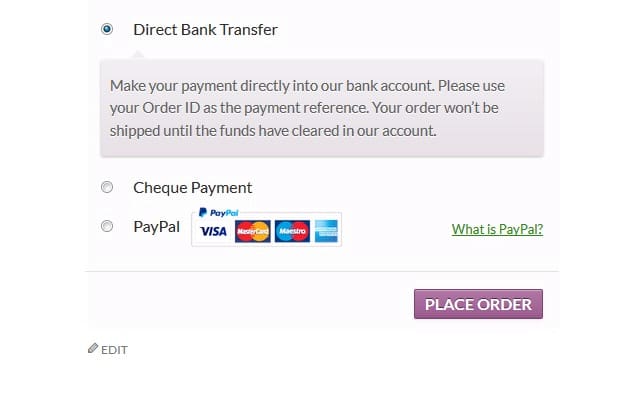
Let’s say you want to remove the Cheque Payment option. Here’s how to do it:
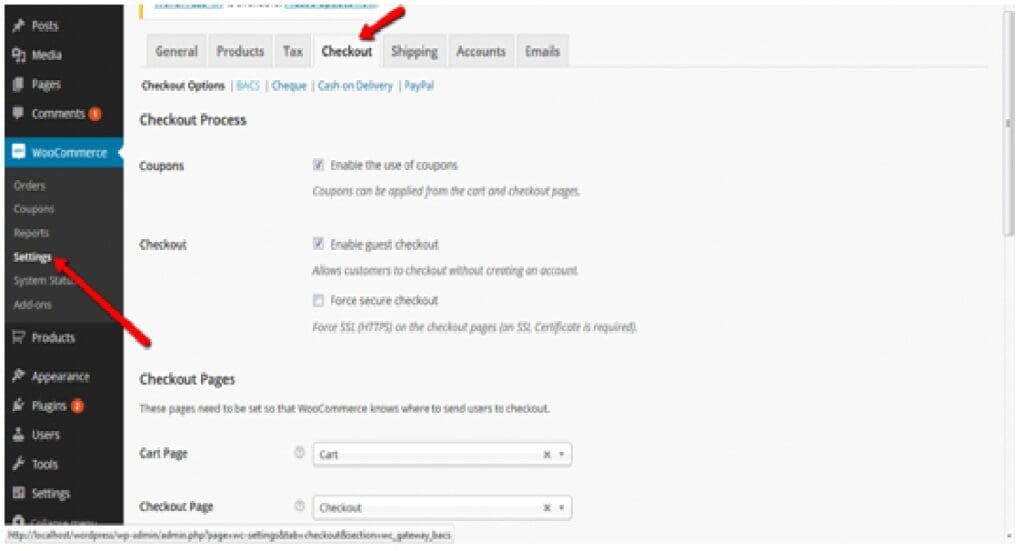
Step 1: Go to WooCommerce Checkout Settings
Log into your WordPress admin panel. Navigate to WooCommerce → Settings and click the Checkout tab at the top. You’ll see all the available payment gateways listed:
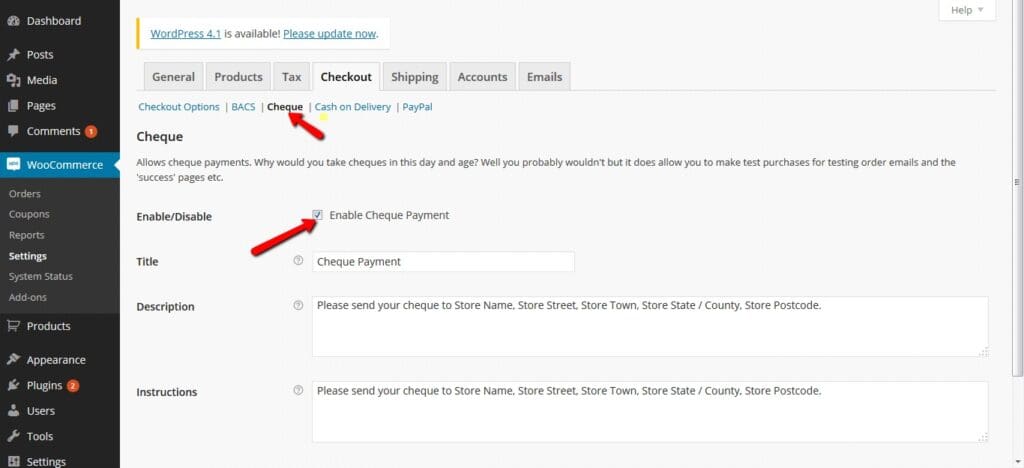
Step 2: Disable the Payment Method
Click on the Cheque link to open its settings. You’ll see an Enable Cheque Payment checkbox. Uncheck it and click Save changes.
Step 3: Verify on the Checkout Page
Now go to the front end of your site and refresh the checkout page. The Cheque Payment option will no longer appear:
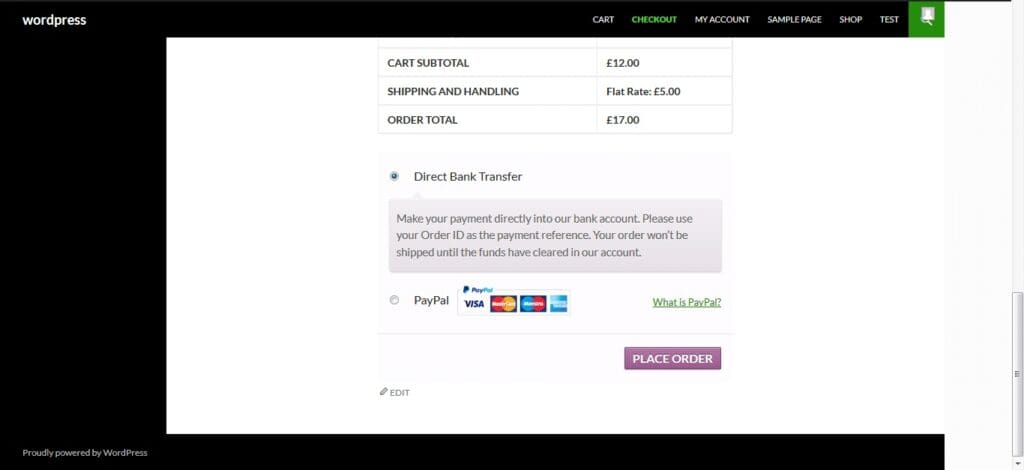
You can use this same process to disable any payment gateway. Just click on the gateway’s settings link, uncheck the Enable box, and save.
Part 2: Remove All Payment Methods Entirely
If you want to remove all payment options from the checkout page entirely — leaving just a “Place Order” button — you can do this with a single line of code. This is useful for free products, quote-request forms, or stores that handle payment offline.
Add the following line to your child theme’s functions.php file:
add_filter(
  'woocommerce_cart_needs_payment',
  '__return_false'
);
That’s it. After saving the file, your checkout page will display only the order summary and a Place Order button — no payment gateways at all.
Conclusion
Removing payment options from your WooCommerce checkout is straightforward whether you want to disable a single gateway through the admin settings or remove all payment methods entirely with one line of code. Both approaches are safe, reversible, and take just a few minutes to implement.
Frequently Asked Questions
Will disabling a payment gateway affect existing orders?
No. Existing orders that were placed using the disabled gateway will remain unchanged. The change only affects new orders going forward.
Can I disable payment methods for specific products or categories?
Yes, but that requires a custom code snippet using the woocommerce_available_payment_gateways filter. You’d loop through the cart items and conditionally unset specific gateways based on product ID or category.
What happens if I remove all payment methods using the code?
The checkout page will still work — it just won’t show any payment options. Customers will see the order summary and a “Place Order” button. Orders will be created with a status of “Processing” or “On Hold” depending on your settings.
Can I re-enable a payment method later?
Absolutely. Just go back to WooCommerce → Settings → Payments, click on the gateway, check the Enable box, and save. For the code method, simply remove the line from functions.php.