
Shortcodes are a great way to add functionalities to your store. While creating a shortcode you can use same code written once at multiple places. It’s same like calling a function in functional programming approach.
In this tutorial we’ll learn how to create a short code that will list products on the basis of given tags.
To do this add the following lines of code at the end of your theme’s functions.php file:
function woo_products_by_tags_shortcode( $atts, $content = null ) {

// Get attribuets

extract(shortcode_atts(array(

"tags" => ''

), $atts));

ob_start();

// Define Query Arguments

$args = array(

'post_type' => 'product',

'posts_per_page' => 100,

'tag_name' => $tags

);

// Create the new query

$products = new WP_Query( $args );


//$woocommerce_loop['columns'] = $columns;


if ( count($products->posts) > 0 ) : ?>


<?php $products->the_post(); ?>


<?php endif;


// The Loop

while ( $products->have_posts() ) {

                $products->the_post();

                ?>

<li><a href="<?php the_guid() ?>"><?php echo get_the_title() ?></a></li>

<?php

                //echo '<li><a href="'.the_guid().'">' . get_the_title() . '</a></li>';

}


$product_count = $products->post_count;


if( $product_count > 0 ) :


                                echo '<ul class="products">';


                                                // Start the loop

                                                while ( $products->have_posts() ) : $products->the_post();


                                                                global $product;

                                                                global $post;

                                                                $products->the_post();


                                                endwhile;


                                echo '</ul><!--/.products-->';


                else :


                                _e('No product matching your criteria.');


                endif;


woocommerce_reset_loop();

wp_reset_postdata();


return ob_get_clean();

}


add_shortcode("woo_products_by_tags", "woo_products_by_tags_shortcode");
You can access functions.php file here:
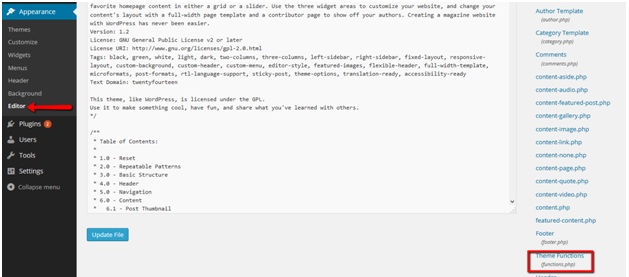 This code will create a shortcode that can be used on any page or post. This will be the shortcode which can be used along with tag parameter:
[woo_products_by_tags tags=”xyz”]
Place it on any page.
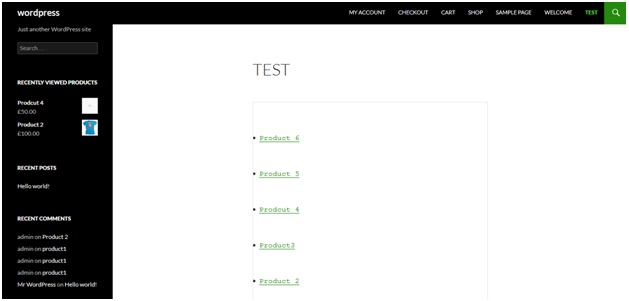
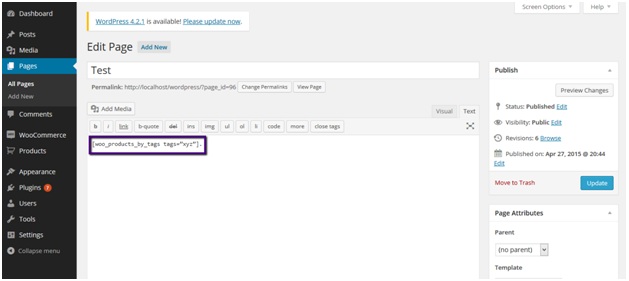 Save page and go to page from front end.
You’ll see product having provided tag, listed there:
 CHEERS J