

By default, WooCommerce’s product search only looks at product titles and descriptions. It does not include SKU (Stock Keeping Unit) numbers in search results. This is a common frustration for store owners and customers alike — especially in stores with large catalogs where searching by SKU is the fastest way to find a specific product. In this tutorial, we’ll show you two methods to enable SKU-based product search: a quick plugin method and a custom code approach for those who prefer not to install additional plugins.
Method 1: Using the Search by SKU Plugin (Easiest)
The simplest way to add SKU search functionality is by using the free Search by SKU for WooCommerce plugin. It requires no configuration just install and activate, and SKU search starts working immediately.
You can download the plugin from the WordPress plugin directory:
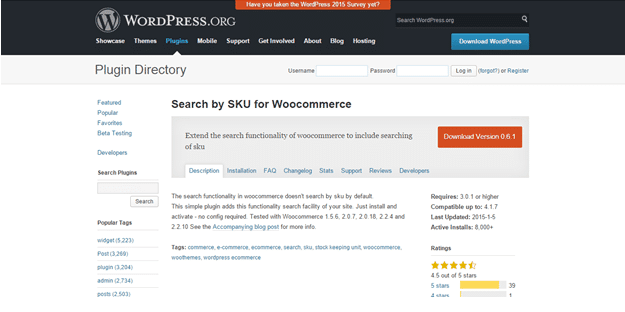
Installation steps:
1. Download the plugin from wordpress.org/plugins/search-by-sku-for-woocommerce or search for it directly in your WordPress admin under Plugins → Add New.
2. Install and activate the plugin.
3. That’s it. Go to the front end of your site and search for a product by its SKU. The search results will now include SKU matches.
The plugin is lightweight, requires no settings or configuration, and has been tested with WooCommerce 1.5.6 through the latest versions. It simply extends WooCommerce’s default search query to include the SKU meta field.
Method 2: Using Custom Code (No Plugin)
If you prefer not to install an additional plugin, you can add SKU search functionality with a code snippet. Add the following to your child theme’s functions.php file:
add_filter( 'posts_search', 'woo_search_by_sku',
  9, 2 );

function woo_search_by_sku( $search, $query ) {
  global $wpdb;

  if ( ! is_admin()
    && $query->is_search()
    && $query->is_main_query() ) {

    $search_term = $query->get( 's' );

    if ( ! empty( $search_term ) ) {
      $search .= $wpdb->prepare(
        " OR {$wpdb->posts}.ID IN (
          SELECT post_id FROM {$wpdb->postmeta}
          WHERE meta_key = '_sku'
          AND meta_value LIKE %s
        )",
        '%' . $wpdb->esc_like(
          $search_term
        ) . '%'
      );
    }
  }

  return $search;
}
This code hooks into the posts_search filter and adds an extra SQL condition that also searches the _sku meta field in the postmeta table. It only runs on front-end search queries, so admin searches are unaffected.
Conclusion
Enabling SKU search in WooCommerce is a small change that can significantly improve the shopping experience for your customers especially in stores with large product catalogs. Whether you go with the free plugin or the custom code snippet, both methods are quick, reliable, and easy to implement.
Frequently Asked Questions
Why doesn’t WooCommerce search by SKU by default?
WooCommerce uses WordPress’s standard search, which only queries the post title and content fields. SKU is stored as a custom meta field (_sku) in the postmeta table, which WordPress’s default search doesn’t include.
Does the plugin method also work in the admin product search?
The Search by SKU plugin primarily targets the front-end search. However, WooCommerce’s admin product list already supports SKU search natively through its own search handler.
Will the code method slow down my site?
For most stores, the impact is negligible. The additional SQL query is a simple meta_value lookup. However, for very large catalogs (10,000+ products), consider adding a database index on the _sku meta_key for optimal performance.
Can I use both methods together?
You can, but there’s no benefit. Using both would result in duplicate search logic. Pick one method and stick with it — the plugin for simplicity, or the code for a plugin-free setup.