
When a customer adds a product to their cart in WooCommerce, they see a default notification message like “View Cart” with a link. While functional, this message is generic and doesn’t give much feedback. You might want to customize it to something more descriptive like “Product successfully added to your cart” or a branded message that fits your store’s tone.
In this tutorial, we’ll show you how to edit the add-to-cart message using WooCommerce’s built-in filters. We’ll cover both the standard page-reload method and the AJAX method (where the cart updates without a page reload).
The Default Add to Cart Message
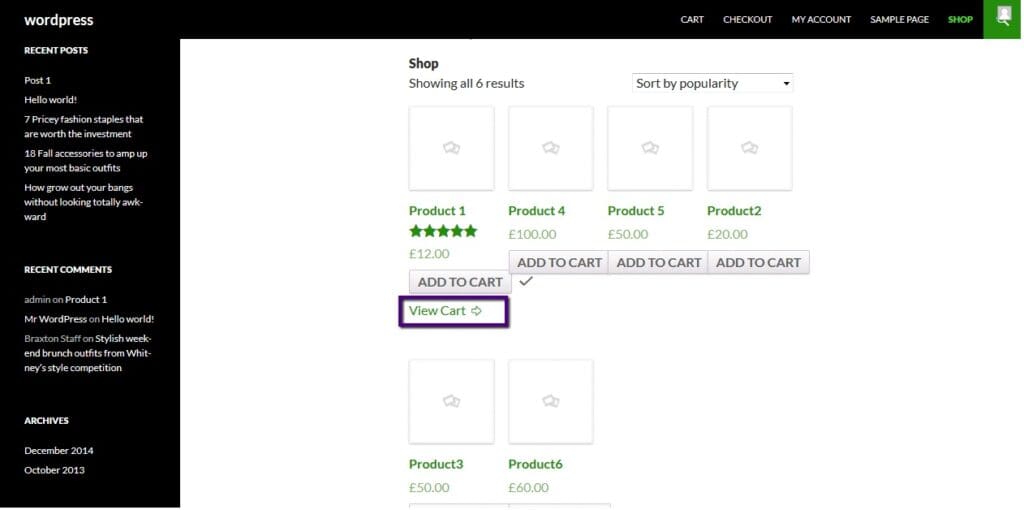
Here’s what the default WooCommerce message looks like when you add a product to the cart on the shop page. It shows a “View Cart” link:
Customize the Message With a Filter
To change this message, add the following code to your child theme’s functions.php file. This snippet handles both scenarios when WooCommerce redirects to the cart after adding, and when it stays on the shop page:
add_filter( 'woocommerce_add_to_cart_message',
'custom_add_to_cart_message' );
function custom_add_to_cart_message() {
global $woocommerce;
if ( get_option(
'woocommerce_cart_redirect_after_add'
) == 'yes' ) :
$return_to = get_permalink(
wc_get_page_id( 'shop' )
);
$message = sprintf(
'<a href="%s" class="button">%s</a> %s',
$return_to,
__( 'Continue Shopping →',
'woocommerce' ),
__( 'Product successfully added to your cart.',
'woocommerce' )
);
else :
$message = sprintf(
'<a href="%s" class="button">%s</a> %s',
get_permalink(
wc_get_page_id( 'cart' )
),
__( 'View Cart →', 'woocommerce' ),
__( 'Product successfully added to your cart.',
'woocommerce' )
);
endif;
return $message;
}This code checks whether WooCommerce is set to redirect to the cart page after adding a product. If it is, the message includes a “Continue Shopping” link back to the shop. If not, it shows a “View Cart” link. In both cases, the main message text is “Product successfully added to your cart.”
For AJAX Add to Cart: Use the gettext Filter
If your shop uses AJAX to add products to the cart (meaning the page doesn’t reload), the above filter alone won’t change the AJAX response text. You’ll also need to add this gettext filter to catch and replace the message string:
function your_woo_ajax_solution(
  $translation, $text, $domain
) {
  if ( $domain == 'woocommerce' ) {
    if ( $text == 'View Cart' ) {
      $translation =
        'Product successfully added to your cart.';
    }
  }
  return $translation;
}
add_filter( 'gettext',
  'your_woo_ajax_solution', 10, 3 );
This filter intercepts WooCommerce’s translation strings and replaces “View Cart” with your custom message. It runs on every translatable string in the WooCommerce domain, so it catches the AJAX-generated text as well.
The Result
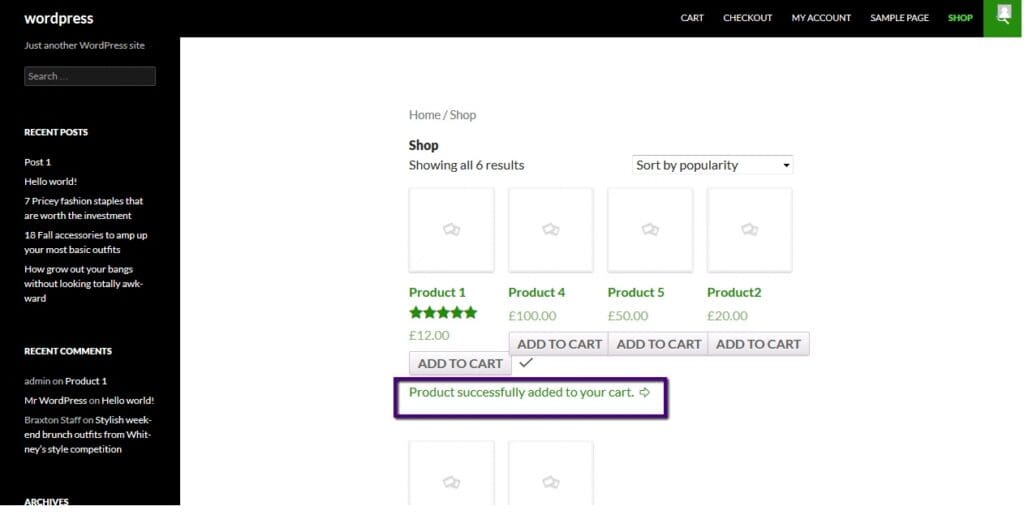
After saving the file and refreshing your shop page, when you add a product to the cart you’ll see your custom message instead of the default:
Conclusion
Customizing the WooCommerce add-to-cart message is a quick way to improve the shopping experience and make your store feel more polished. With two simple filters in functions.php, you can replace the generic “View Cart” text with a friendly, branded message that works with both standard and AJAX add-to-cart actions.
Frequently Asked Questions
Do I need both code snippets?
It depends on your setup. If your shop uses AJAX add-to-cart (the default on archive pages), you need the gettext filter to change the AJAX response. If your store redirects to the cart page after adding, the first filter alone is enough. For full coverage, use both.
Can I show different messages for different products?
Yes. The woocommerce_add_to_cart_message filter passes the product ID as a parameter. You can check the product ID inside the function and return different messages based on the product.
Will this survive WooCommerce updates?
Yes, as long as you add the code to a child theme’s functions.php. Parent theme changes are overwritten on updates.
Can I add HTML to the custom message?
Yes. The message supports HTML, so you can include links, icons, bold text, or any other HTML elements. Just make sure to properly escape any dynamic content.