
Want to add the product SKU to your WooCommerce product URL? By default, WooCommerce product URLs look like this:
https://yourdomain.com/product/product-name
With a small PHP snippet added to your functions.php file, you can change it to include the SKU like this:
https://yourdomain.com/product/product-name/#SKU943713
Or even as a full permalink segment:
https://yourdomain.com/shop/SKU/product-name/
In this tutorial, I’ll show you both methods – a simple append approach and a full permalink method using .htaccess.
Before You Start: Getting Ready
Before making any changes, always take a full backup of your site. You’ll be editing your theme’s functions.php file and potentially your .htaccess file – both are critical files and a mistake can break your site if you’re not careful.
Always use a child theme’s functions.php so your changes survive theme updates. Never edit the parent theme directly.
Method 1: Append SKU as a Hash Fragment to the Product URL
This is the quickest method. It adds the product SKU at the end of the URL as a hash fragment (e.g. /product-name/#SKU943713).
Step 1: Go to Appearance > Editor in your WordPress dashboard and open the Theme Functions (functions.php) file on the right-hand side.
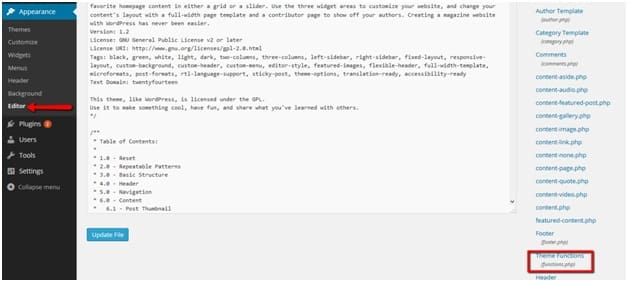
Step 2: Add the following code at the very end of your functions.php file and click Update File:
function jpb_custom_meta_permalink( $link, $post ) {
    $post_meta = get_post_meta( $post->ID, '_sku', true );

    if ( empty( $post_meta ) || ! is_string( $post_meta ) )
        $post_meta = '';

    $link = str_replace( '!!custom_field_placeholder!!', $post_meta, $link );
    return $link;
}
add_filter( 'post_link', 'jpb_custom_meta_permalink', 10, 2 );

function append_sku_string( $link, $post ) {
    $post_meta = get_post_meta( $post->ID, '_sku', true );

    if ( 'product' == get_post_type( $post ) ) {
        $link = $link . '#' . $post_meta;
        return $link;
    }
}
add_filter( 'post_type_link', 'append_sku_string', 1, 2 );
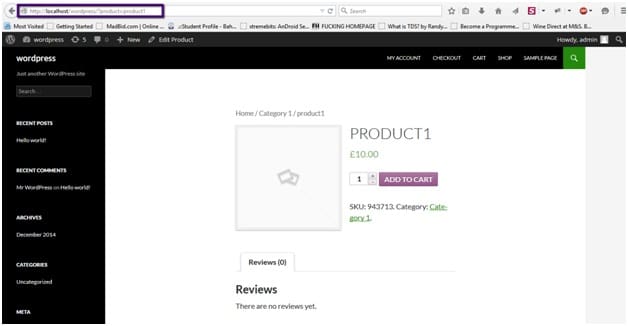
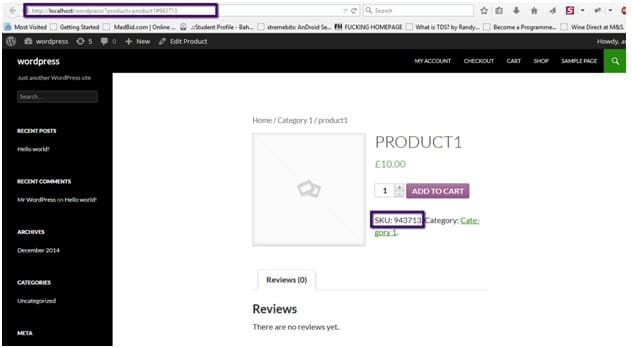
Step 3: Now go to any product page by clicking on it from a category or shop page. You’ll see the SKU appended to the product URL in your browser’s address bar.
Method 2: Add SKU as a Full Permalink Segment (Advanced)
If you want the SKU to appear as an actual part of the URL path like this:
https://yourdomain.com/shop/SKU/product-name/You’ll need to add a RewriteRule to your .htaccess file in addition to the functions.php code above.
Open your .htaccess file (found in the root of your WordPress installation via FTP or cPanel File Manager) and add the following before the # BEGIN WordPress line:
# BEGIN WC SKU post meta in permalink
<IfModule mod_rewrite.c>
RewriteEngine On
RewriteBase /

RewriteRule ^shop/([A-Za-z0-9-_]+)/([A-Za-z0-9-_]+)/?$ ?sku=$1&product=$2 [NC,L]
</IfModule>
# END WC SKU post meta in permalink

# BEGIN WordPress
...
Save the file and test by visiting a product URL with the SKU segment included.
Which Method Should You Use?
| Your Goal | Best Method |
|---|---|
| Quick SKU reference in URL | Method 1 (Hash fragment) |
| SKU as part of the URL path | Method 2 (.htaccess RewriteRule) |
| Just for tracking/analytics | Method 1 is enough |
| SEO-friendly SKU in URL | Method 2 (cleaner URL structure) |
Wrapping Up
Adding the SKU to your WooCommerce product URL is a clean way to make product links more identifiable, especially useful for stores with large catalogs where quick product identification matters.
To recap:
- Method 1: Adds the SKU as a hash fragment at the end of the existing URL. Quick, safe, no .htaccess changes needed.
- Method 2: Adds the SKU as a proper URL path segment using a RewriteRule. Better for SEO and cleaner for sharing product links.
Both methods use a small amount of PHP code in functions.php — no plugin required.
If you need help implementing either method or customizing the URL structure for your specific store setup, our team at Themelocation is ready to help