
By default, WooCommerce only shows an “Add to Cart” button on shop and category archive pages. There’s no quantity field — each click adds exactly one item. If a customer wants to add multiple units of the same product, they have to click the button repeatedly or go to the individual product page.
In this tutorial, we’ll add a quantity input field next to the Add to Cart button on your archive pages. Customers will be able to set the quantity directly from the shop page and add multiple items in a single click, with full AJAX support.
The Default: No Quantity Field on Archive Pages
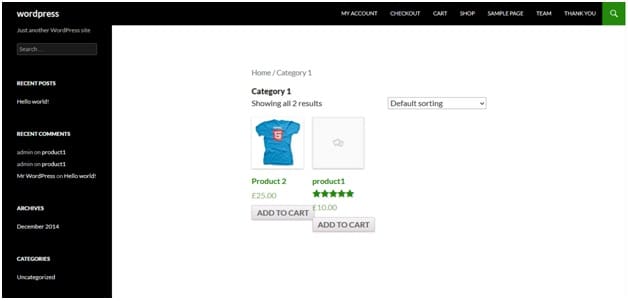
Here’s what a typical WooCommerce category page looks like by default. Products show only the Add to Cart button with no way to adjust the quantity:
Add the Code to functions.php
Add the following code to your child theme’s functions.php file. This adds the quantity field, modifies the Add to Cart button for AJAX compatibility, and includes the JavaScript needed to keep everything in sync:
function custom_woo_before_shop_link() {
  add_filter(
    'woocommerce_loop_add_to_cart_link',
    'custom_woo_loop_add_to_cart_link', 10, 2
  );
  add_action(
    'woocommerce_after_shop_loop',
    'custom_woo_after_shop_loop'
  );
}
add_action(
  'woocommerce_before_shop_loop',
  'custom_woo_before_shop_link'
);

function custom_woo_loop_add_to_cart_link(
  $button, $product
) {
  if ( ! in_array(
    $product->get_type(),
    array('variable','grouped','external')
  ) ) {
    if ( $product->is_purchasable() ) {
      ob_start();
      woocommerce_simple_add_to_cart();
      $button = ob_get_clean();

      $replacement = sprintf(
        'data-product_id="%d"
         data-quantity="1" $1
         add_to_cart_button
         product_type_simple ',
        $product->get_id()
      );
      $button = preg_replace(
        '/(class="single_add_to_cart_button)/',
        $replacement, $button
      );
    }
  }
  return $button;
}

function custom_woo_after_shop_loop() {
  ?>
  <script>
  jQuery(function($) {
    $("form.cart").on("change",
      "input.qty", function() {
        $(this.form)
          .find("button[data-quantity]")
          .attr("data-quantity", this.value);
    });
    $(document.body).on("adding_to_cart",
      function() {
        $("a.added_to_cart").remove();
    });
  });
  </script>
  <?php
}
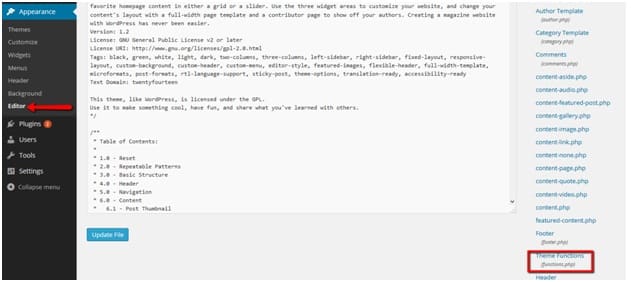
You can access the functions.php file from Appearance → Editor and selecting Theme Functions (functions.php) from the file list:
The Result
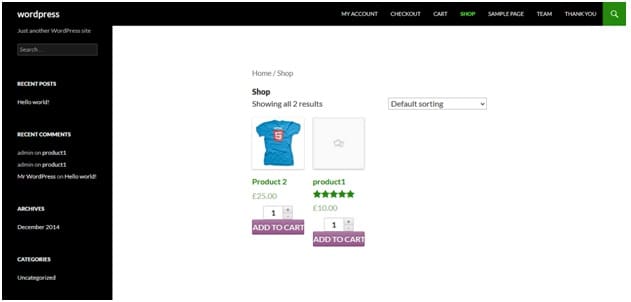
After saving the file and refreshing your shop or category page, you’ll see a quantity input field next to each product’s Add to Cart button:
How This Code Works
The code works in three parts. The first function hooks into the shop loop and registers two additional hooks. The second function replaces the default Add to Cart link with WooCommerce’s full simple product add-to-cart form (which includes the quantity field), then modifies the button so it’s compatible with AJAX add-to-cart. The third function outputs a small JavaScript block that keeps the quantity attribute on the button in sync with the input field and cleans up duplicate “View Cart” links.
Conclusion
Adding a quantity field to WooCommerce archive pages is a practical improvement that lets customers add multiple items without visiting individual product pages. With built-in AJAX support, the experience stays fast and seamless — no page reloads needed.
Frequently Asked Questions
Q: Does the AJAX add-to-cart still work with this?
Yes. The code modifies the button to include the data-product_id and data-quantity attributes that WooCommerce’s AJAX script needs. The JavaScript keeps the quantity attribute updated as the user changes the input value.
Q: Why doesn’t the quantity field appear for variable products?
Variable products require the customer to choose options (like size or color) before adding to cart. The quantity field is intentionally excluded for these product types because the selection has to happen on the individual product page.
Q: Can I set a maximum quantity?
Yes. You can use the woocommerce_quantity_input_max filter or set stock management limits on individual products. The quantity input will respect the max value set in your product’s inventory settings.
Q: Will this survive theme or WooCommerce updates?
Yes, as long as you add the code to a child theme’s functions.php. Parent theme files are overwritten on updates.