
Adding a “Continue Shopping” button to your WooCommerce cart page is a small change that makes a big difference to the user experience. Instead of leaving customers stuck on the cart page with only the option to checkout or hit the browser’s back button, a dedicated “Continue Shopping” link gives them a clear, friendly path back to your store.
From a UX perspective, this button reduces friction and encourages customers to keep browsing, which can lead to more items added to the cart before they finally check out.
What the Default Cart Page Looks Like
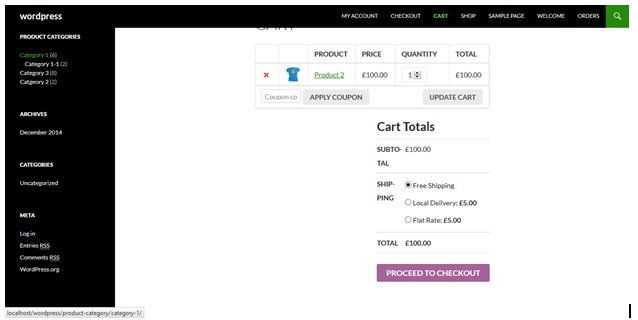
By default, the WooCommerce cart page shows the cart totals and a “Proceed to Checkout” button — but no way to navigate back to the shop easily.
How to Add the Continue Shopping Button
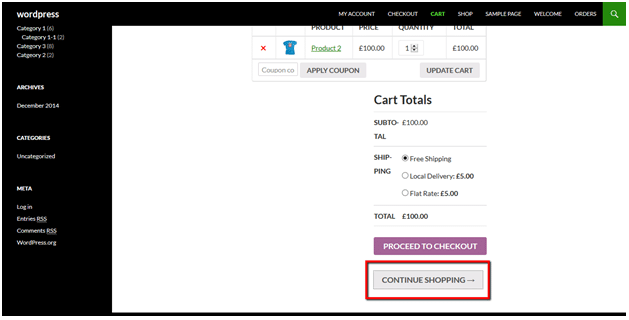
The best position for this button is right below the “Proceed to Checkout” button — it gives customers a clear choice: complete the purchase, or keep browsing.
To add it, go to:
Appearance > Theme Editor > Theme Functions (functions.php)
Scroll to the very end of the existing code and paste the following snippet, then click Update File:
add_action( 'woocommerce_after_cart_totals', 'tl_continue_shopping_button' );
function tl_continue_shopping_button() {
$shop_page_url = get_permalink( wc_get_page_id( 'shop' ) );
echo '<div class="continue-shopping-wrap">';
echo '<a href="' . esc_url( $shop_page_url ) . '" class="button">Continue Shopping →</a>';
echo '</div>';
}What was improved in this code vs older versions:
- Replaced the deprecated
woocommerce_get_page_id()with the currentwc_get_page_id()— this is the correct function in modern WooCommerce - Added
esc_url()around the URL for proper security sanitization - Used
→HTML entity for the arrow instead of a plain character for better cross-browser rendering
The Result
After saving the file, visit your cart page. You’ll now see a “Continue Shopping →” button sitting below the “Proceed to Checkout” button, linking directly back to your shop page.
How to Customize the Button
Change the button text: Replace Continue Shopping → with any label you prefer — for example Keep Browsing, Back to Shop, or ← Return to Store.
Change where the button links: By default, the button links to your main WooCommerce shop page. To link to a different page — like a specific category — replace wc_get_page_id( 'shop' ) with a direct URL:
$shop_page_url = 'https://yourdomain.com/product-category/your-category/';Style the button with CSS: The button uses WooCommerce’s default .button class, so it will automatically match your theme’s button styles. To add custom styling, target the wrapper class:
.continue-shopping-wrap {
margin-top: 10px;
text-align: center;
}
.continue-shopping-wrap .button {
background-color: #f0f0f0;
color: #333;
}
Add this to Appearance > Customize > Additional CSS.
Wrapping Up
Adding a “Continue Shopping” button to your WooCommerce cart is a quick win for user experience. It takes less than 5 minutes to implement and gives your customers a clear, friendly option to keep browsing without feeling locked into the checkout flow.
Here’s a quick recap:
- Add the snippet to your child theme’s
functions.phpor via the Code Snippets plugin - The button appears below “Proceed to Checkout” automatically
- Customize the text, link, or style to match your store
Frequently Asked Questions
Will this button work with all WooCommerce themes?
Yes the snippet hooks into woocommerce_after_cart_totals, which is a standard WooCommerce action available across all themes that use the default WooCommerce cart template.
What if I’m using a page builder like Elementor for my cart page?
If you’ve built a custom cart page using a page builder, the WooCommerce action hooks may not apply. In that case, you can add the button directly inside the page builder’s layout as a button element with your shop page URL.
Does this affect the mini-cart or cart widget?
No this snippet only adds the button to the main cart page. The mini-cart dropdown in the header is not affected.
Will the button survive a WooCommerce update?
Yes. The hook woocommerce_after_cart_totals is a core WooCommerce hook and is stable across updates. As long as your code is in a child theme’s functions.php or the Code Snippets plugin, it will stay in place after any update.