

When a WooCommerce product doesn’t have an image assigned, the store automatically displays a grey placeholder image with the WooCommerce logo. While this is better than a broken image, it doesn’t look great — especially on a professionally designed store where branding consistency matters.
The good news is you can replace that default placeholder with any custom image you choose — your brand logo, a “coming soon” graphic, a category banner, or anything that fits your store’s design.
In this tutorial, I’ll show you exactly how to do it in a few simple steps.
What the Default Placeholder Looks Like
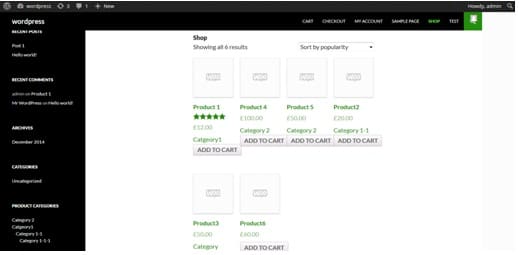
When no product image is uploaded, WooCommerce shows its default grey placeholder across your shop page, category pages, and anywhere else products are displayed.
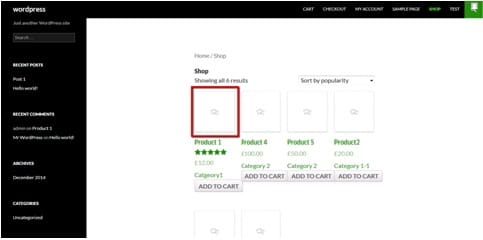

Step 1: Upload Your Custom Placeholder Image
First, upload the image you want to use as the new placeholder to your WordPress Media Library.
Go to Media > Add New in your WordPress dashboard.
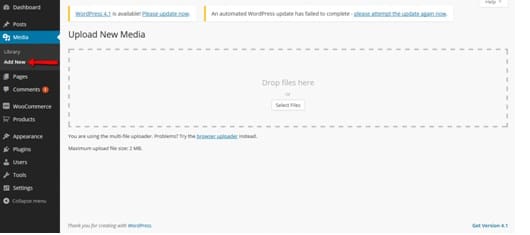
Drag your image into the upload area or click Select Files to browse and upload from your computer.
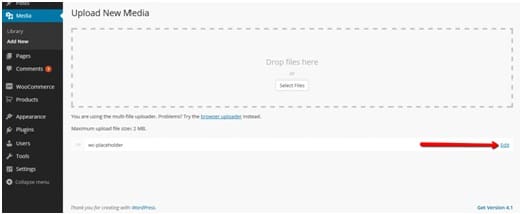
Once the upload is complete, you’ll see the file listed below the upload area. Click the Edit link next to your newly uploaded file.
Step 2: Copy the Image URL
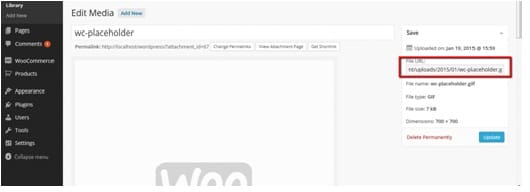
After clicking Edit, you’ll be taken to the media edit screen. On the right side, you’ll see the File URL — copy this URL, you’ll need it in the next step.
Step 3: Add the Code to functions.php
Now open your theme’s functions.php file. Go to:
Appearance > Theme Editor > Theme Functions (functions.php)
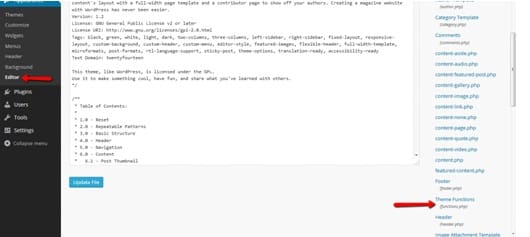
Scroll to the very bottom of the existing code and add the following snippet. Replace the URL in the last line with the image URL you copied in Step 2:
add_filter( 'woocommerce_placeholder_img_src', 'custom_woocommerce_placeholder_img_src' );

function custom_woocommerce_placeholder_img_src( $src ) {
    $src = 'https://yourdomain.com/wp-content/uploads/your-custom-placeholder.jpg';
    return $src;
}
Click Update File to save.
Step 4: See the Result
Refresh your shop or category page and you’ll see your custom placeholder image replacing the old WooCommerce default across all products that don’t have an image assigned.
Tips for Your Custom Placeholder Image
Recommended image size: WooCommerce’s default placeholder is 700 × 700 pixels (square). Use the same dimensions for your custom image to ensure it renders consistently across all product image spots — shop page, category page, product page, and cart.
File format: JPG or PNG both work. If you want transparency, use PNG. For a smaller file size, JPG is fine for most placeholder images.
Keep it on-brand: A custom placeholder is a great opportunity to reinforce your brand — use your logo on a clean background, a “photo coming soon” style graphic, or a branded pattern that matches your store’s color scheme.
Wrapping Up
Replacing the default WooCommerce placeholder image is a quick but impactful customization. It takes just a few minutes and makes your store look far more polished — especially if you have products that are still being set up or don’t have photos yet.
To recap:
- Upload your custom image to Media > Add New and copy the file URL
- Add the filter code to your child theme’s
functions.phpwith your image URL - Refresh your shop page — your new placeholder is live
If you need help with this or any other WooCommerce customization, our team at Themelocation is always available.
Frequently Asked Questions
Will this change the placeholder everywhere — product page, cart, and search results too?
Yes. The woocommerce_placeholder_img_src filter applies globally, it replaces the placeholder image everywhere WooCommerce displays it, including the shop page, category pages, single product page, cart, and search results.
What happens to products that already have images?
Nothing, this only affects products with no image assigned. Products with uploaded images will continue to display their own image as normal.
Can I set a different placeholder for different product categories?
Yes, but it requires a more advanced approach — checking the current product category inside the filter function and returning a different URL based on it. Feel free to contact our team if you need this customization.
What if the placeholder image still shows the old WooCommerce default after adding the code?
First, clear your caching plugin if you have one active. Also try clearing your browser cache with Ctrl+Shift+R (or Cmd+Shift+R on Mac). If it still doesn’t change, double-check that the image URL in the code is correct and publicly accessible.
Can I use this with WooCommerce’s built-in placeholder setting?
WooCommerce also has a built-in option to set a placeholder image under WooCommerce > Settings > Products > General > Placeholder Image. If that option is available in your version of WooCommerce, it’s the simplest no-code way to set a custom placeholder. The code method above is a reliable fallback that works across all WooCommerce versions.