

Ever uploaded an image to your WordPress Media Library and wondered which posts or pages actually use it? By default, WordPress doesn’t make it easy to trace an attachment back to the content it’s used in. This can make media management frustrating — especially when you want to update, replace, or delete images without breaking anything.
In this tutorial, we’ll show you how to quickly find all the posts and pages where a specific attachment (image, video, or file) is being used, thanks to a free plugin called Find Posts Using Attachment. It adds a “Used In” column to your Media Library, making it easy to see exactly where each file appears on your site.
Step 1: Download and Install the Plugin
Download the plugin from the WordPress repository: wordpress.org/plugins/find-posts-using-attachment
After downloading, go to Plugins → Add New → Upload Plugin in your WordPress admin. Browse for the downloaded ZIP file and click Install Now, then activate the plugin:

Step 2: Browse Your Media Library
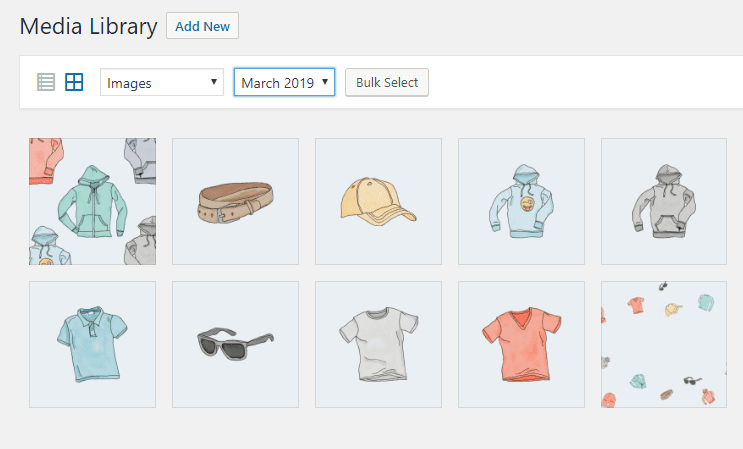
Once the plugin is activated, go to Media → Library in your dashboard. You can filter attachments by type (images, videos, etc.) and by date using the dropdown menus. Your media library will look something like this:
Step 3: Check Where an Attachment Is Used
Click on any attachment to open its details. At the bottom of the attachment information panel, you’ll now see a “Used In” section added by the plugin. This shows you exactly which post or page uses this attachment and how it’s used (as a featured image, in the content, etc.):
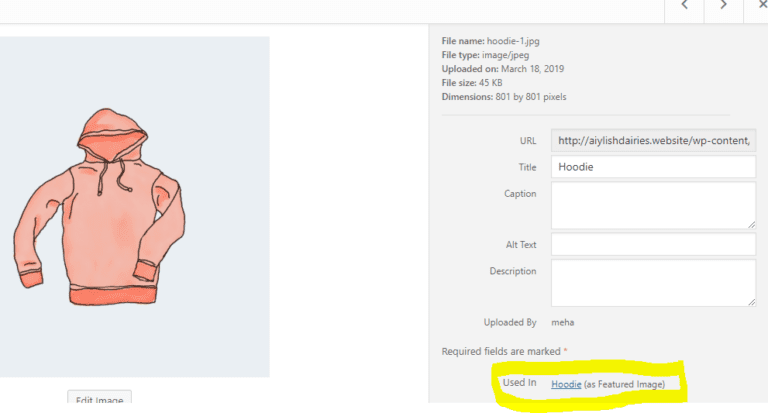
Clicking the post name link takes you directly to the edit screen for that post, making it easy to update or modify the content where the attachment is used.
Why This Plugin Is Useful
Media cleanup: Before deleting unused images, check whether they’re actually used somewhere on your site.
Image updates: When replacing a product image or logo, quickly find all the posts and pages that reference it.
Content auditing: Track which attachments are being used and which are orphaned files taking up storage space.
SEO optimization: Ensure all images used in published content have proper alt text and descriptions.
Conclusion
The Find Posts Using Attachment plugin is a small but powerful tool for WordPress media management. It answers the simple question “Where is this image used?” with a single click — saving you from accidentally deleting images that are still in use and making content audits much faster.
Frequently Asked Questions
Does this plugin work with WooCommerce product images?
Yes. It works with any WordPress attachment, including WooCommerce product images, gallery images, and downloadable files. The “Used In” column will show which products reference each image.
Does it show usage in widgets or page builders?
The plugin detects standard WordPress content references (post content, featured images). Some page builders store images differently, so detection may vary. It works best with images inserted through the standard editor or set as featured images.
Will this slow down my Media Library?
For most sites, no. The plugin runs its lookup when you view individual attachment details, not on every page load. Very large media libraries (10,000+ files) may see a slight delay when loading the list view.
Can I see the “Used In” info in list view too?
Yes. The plugin adds a “Used In” column to the Media Library list view (toggle to list view using the icon next to the search bar). This makes it easy to scan through all attachments at once.