
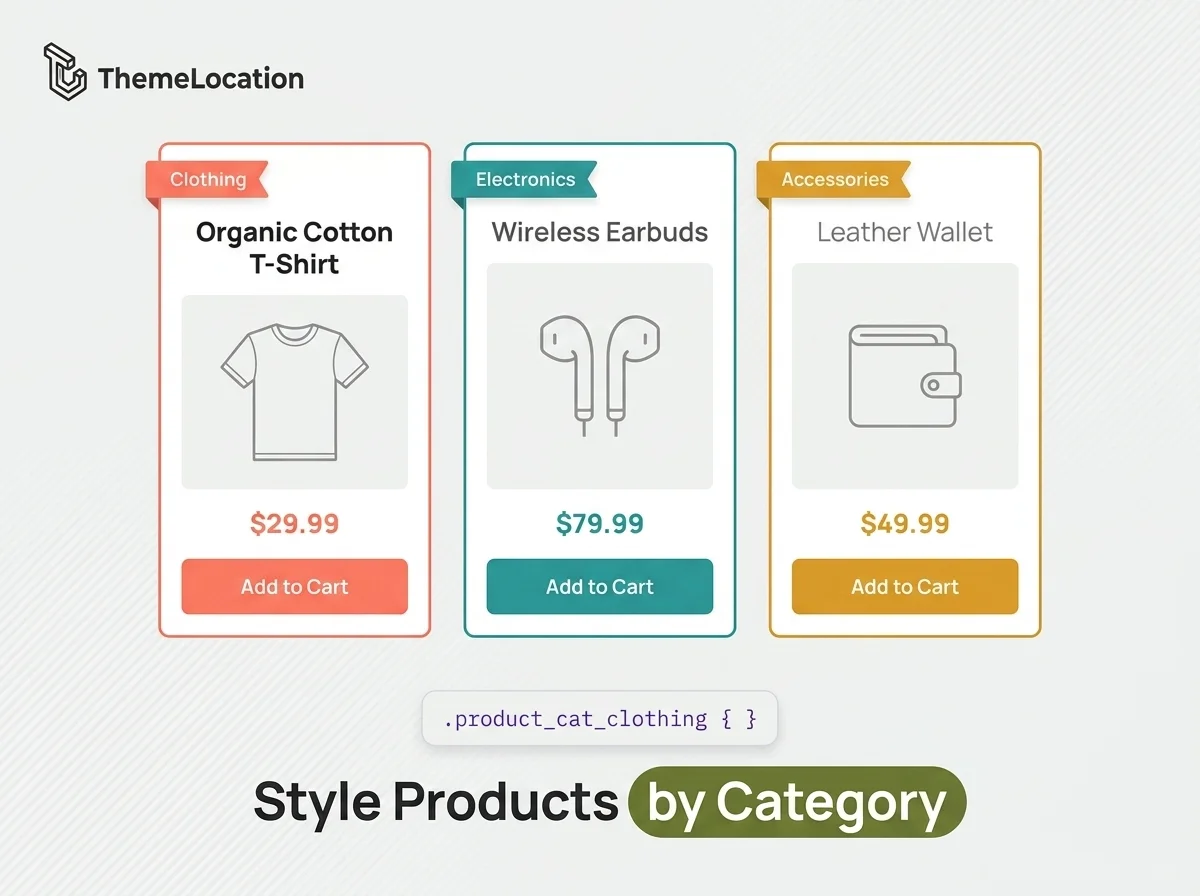
By default, all WooCommerce product pages share the same styling. The <body> tag on a product page includes generic classes like single-product and a post-ID class like postid-37, but there’s no class that identifies which product category the product belongs to.
This means if you want to style products from a specific category differently — say, giving all “Clothing” products a different background or font treatment than “Electronics” — you’d have to write CSS rules targeting individual product IDs. That’s tedious and breaks every time you add a new product.
In this tutorial, we’ll fix this by adding the product’s category slug as a CSS class to the <body> tag. Once added, you can write category-specific CSS rules that automatically apply to every product in that category — including new products added in the future.
The Problem: No Category Class in the Body Tag
When you inspect a WooCommerce product page using your browser’s developer tools, you’ll see the <body> tag contains classes like single single-product postid-37 woocommerce. These are useful for targeting individual products or all products globally, but there’s nothing to differentiate products by category.
The Solution: Add Category Classes via body_class Filter
Add the following code to your child theme’s functions.php file:
// Add product category to body_class
function woo_custom_taxonomy_in_body_class(
  $classes
) {
  if ( is_singular( 'product' ) ) {
    $custom_terms = get_the_terms(
      0, 'product_cat'
    );
    if ( $custom_terms ) {
      foreach ( $custom_terms as $custom_term ) {
        $classes[] = 'product_cat_'
          . $custom_term->slug;
      }
    }
  }
  return $classes;
}

add_filter( 'body_class',
  'woo_custom_taxonomy_in_body_class' );
What This Code Does
The code hooks into WordPress’s body_class filter, which controls which CSS classes are added to the <body> tag. On single product pages, it retrieves all the product categories assigned to that product and adds each one as a class with the prefix product_cat_. For example, a product in the “Clothing” category gets the class product_cat_clothing added to the body tag.
If a product belongs to multiple categories, all of them are added. After saving the file and refreshing any product page, you’ll see the new category class in the body tag when you inspect the element.
How to Write Category-Specific CSS
Now that the category class is in the body tag, you can write CSS rules that only apply to products in a specific category. Add these styles to your theme’s stylesheet or the WordPress Customizer’s Additional CSS section:
/* Style clothing products differently */
.product_cat_clothing .product_title {
  font-family: 'Georgia', serif;
  color: #8B4513;
}

/* Different background for electronics */
.product_cat_electronics .summary {
  background-color: #f0f4f8;
  padding: 20px;
  border-radius: 8px;
}

/* Highlight sale badge for accessories */
.product_cat_accessories .onsale {
  background-color: #e53e3e;
  font-size: 16px;
}
Because these rules inherit from the body class, they apply to every product in that category automatically — including any new products you add later. No need to update your CSS when your catalog changes.
Conclusion
Adding category-specific CSS classes to WooCommerce product pages is a clean, future-proof approach to per-category styling. Instead of writing rules for individual product IDs, you get a single class per category that covers every product automatically current and future.
Frequently Asked Questions
Does this work for product archive pages too?
This code specifically targets single product pages (is_singular(‘product’)). For archive/category pages, WooCommerce already adds category-specific body classes like tax-product_cat and term-clothing, so you can use those directly in your CSS.
What if a product belongs to multiple categories?
All category slugs are added to the body tag. For example, a product in both “Clothing” and “Sale” would get both product_cat_clothing and product_cat_sale classes. Your CSS can target either or both.
Will this slow down my site?
No. The body_class filter runs once per page load, and the get_the_terms function uses WordPress’s built-in taxonomy cache. The performance impact is negligible.
Can I use this for custom taxonomies beyond product categories?
Yes. Change ‘product_cat’ in the get_the_terms call to any custom taxonomy slug, and update the class prefix accordingly. This works for product tags, custom attributes, or any taxonomy registered in WordPress.