

Showing only a single product image on your shop page limits what customers can see at a glance. What if they could preview a second image like the back of a t-shirt or an alternate angle — just by hovering over the product? That’s exactly what the product image flipper effect does.
In this tutorial, we’ll walk you through how to add a hover-to-flip image effect on your WooCommerce product archives using the free WooCommerce Product Image Flipper plugin. It’s ideal for clothing stores, accessories, or any product where showing a second angle adds value.
Step 1: Download the Plugin
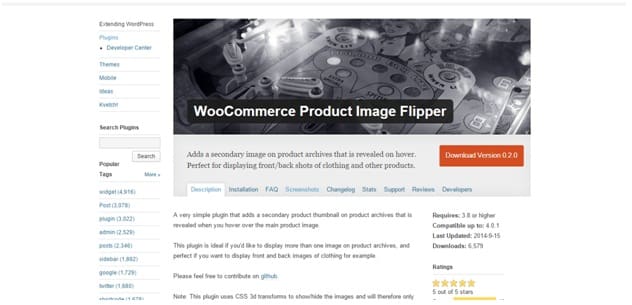
The WooCommerce Product Image Flipper is a free plugin available on the WordPress plugin repository. It adds a secondary product thumbnail on archive pages that is revealed on hover using a CSS3 transform. You can download it from the official page:
Step 2: Upload and Install the Plugin
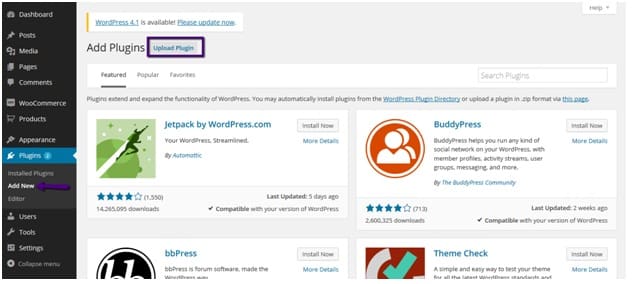
After downloading the plugin ZIP file, go to your WordPress admin panel. Navigate to Plugins → Add New and click the Upload Plugin button at the top:
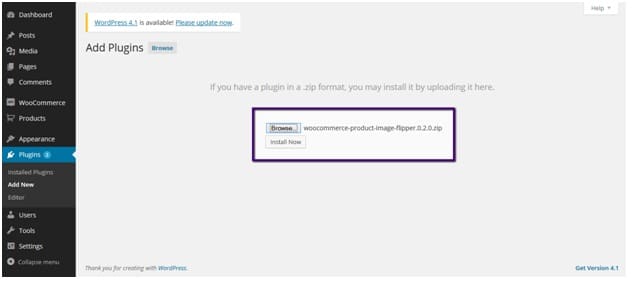
Browse and select the downloaded ZIP file, then click Install Now:
Step 3: Activate the Plugin
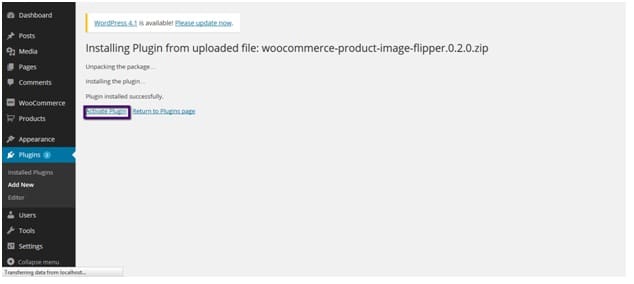
Once the installation completes, click the Activate Plugin button:
Step 4: Set Up Your Product Images
Now that the plugin is active, you need to set up your product with two images. Go to Products and edit (or create) a product:
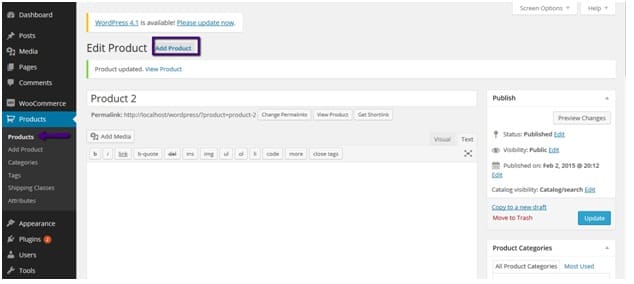
Set the Featured Image of the product, this is the primary image customers see. Then click Add product gallery images to add a secondary image. The first image in the product gallery will be used as the flipper image:
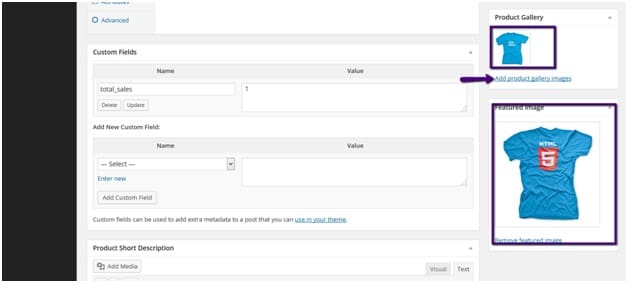
Step 5: View the Effect on Your Shop Page
Go to the front end of your site and open the shop page. You’ll see your product displaying the featured image:
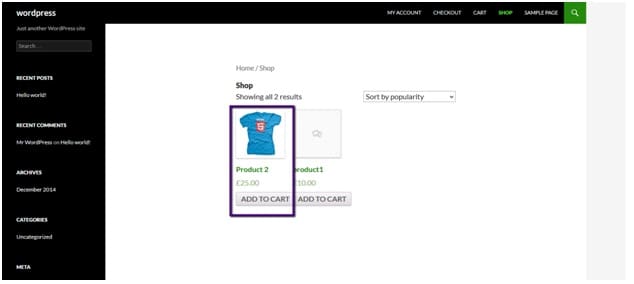
Now hover over the product. The image flips to show the gallery image:

Conclusion
Adding a product image flip effect on hover is a simple way to make your WooCommerce shop feel more interactive and professional. With the free Product Image Flipper plugin, you can show a secondary product view without any coding — just install, add a gallery image, and you’re done.
Frequently Asked Questions
Does this plugin work with all WooCommerce themes?
It works with most themes that use standard WooCommerce product archive templates. If your theme uses heavily customized product grids, you may need to adjust the CSS. The plugin relies on CSS3 transforms, so the theme needs to support standard product image markup.
Can I control which products have the flip effect?
The flip effect is automatic for any product that has at least one image in its product gallery. If a product only has a featured image and no gallery images, no flip will occur. So you can control it simply by adding or removing gallery images.
Does this slow down my site?
No. The plugin is extremely lightweight. It uses CSS3 transforms with no additional JavaScript or image processing. The secondary image is loaded alongside the primary image, so there’s minimal impact on page load time.
Does the flip effect work on mobile?
CSS hover effects don’t work on touch devices in the traditional sense. On mobile, the secondary image typically won’t be shown unless the theme provides a tap-to-flip interaction. The plugin is primarily designed for desktop browsing.