
Many WooCommerce store owners set a product’s price to zero when it’s no longer available or temporarily out of stock. While this is a quick workaround, it creates a problem: those zero-priced products still show up on your shop and category pages, giving customers the impression that items are free or that something is broken.
In this tutorial, we’ll show you how to automatically hide any WooCommerce product with a price of zero from your storefront. The product stays in your catalog and can be re-enabled at any time simply by setting a price above zero — no need to unpublish or delete anything.
The Problem: Zero-Price Products Visible on Shop Page
Here’s what a typical WooCommerce shop page looks like when one product has a price of zero. Both products are displayed, even though the zero-priced one isn’t actually available for purchase:
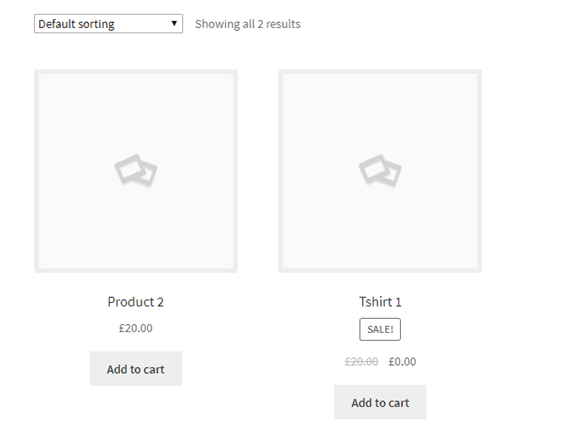
As you can see, “Tshirt 1” is showing with a sale price of £0.00. This looks confusing to customers and makes the store appear unprofessional. Let’s fix this.
The Solution: Add a Meta Query to Hide Zero-Price Products
To hide products with a zero price, add the following code to your child theme’s functions.php file:
add_action( 'woocommerce_product_query',
  'themelocation_product_query' );

function themelocation_product_query( $q ) {
  $meta_query = $q->get( 'meta_query' );

  $meta_query[] = array(
    'key'     => '_price',
    'value'   => 0,
    'compare' => '>'
  );

  $q->set( 'meta_query', $meta_query );
}
Save the file and open your shop page. You’ll see that only products with a price greater than zero are now displayed:

How This Code Works
The code hooks into the woocommerce_product_query action, which fires every time WooCommerce builds a product query for the shop and category archive pages. It adds an extra condition to the query’s meta_query array: only include products where the _price meta value is greater than 0.
This means any product with a price of zero (or no price set) will be automatically excluded from archive pages. The products are not deleted — they remain in your catalog and can be accessed directly via URL or through the admin. Once you set a price above zero, they’ll reappear on the shop page immediately.
Conclusion
Hiding zero-priced products from your WooCommerce shop page is a simple, one-snippet solution that keeps your storefront clean and professional. Instead of confusing customers with £0.00 listings, the meta query filter ensures only products with valid pricing are displayed — and everything reverts automatically once you set a real price.
Need help with your WooCommerce store? Get in touch with our WordPress experts or explore our WordPress maintenance plans.
Frequently Asked Questions
Does this delete the zero-priced products?
No. The products remain in your catalog and are fully accessible through the WordPress admin. They’re only hidden from the front-end shop and category pages. Once you assign a price above zero, they’ll reappear automatically.
Will this also hide products from search results?
This code specifically targets the WooCommerce product archive query, which covers the shop page and category pages. Site-wide search results may still show zero-priced products depending on your theme. To hide them from search as well, you’d need an additional filter on the search query.
What about products with no price set at all?
Products with no price set will also be hidden, since they don’t satisfy the condition of having a price greater than zero. This is actually a useful side effect — it ensures only properly priced products appear on your storefront.
Can I use this with variable products? Yes. WooCommerce stores the lowest variation price in the _price meta key for variable products. If all variations have a price of zero, the product will be hidden. If at least one variation has a price above zero, the product will remain visible.