
By default, WooCommerce displays all products on your shop and category pages — regardless of whether they have a featured image assigned. When a product doesn’t have an image, WooCommerce shows a generic placeholder instead, which can make your storefront look unfinished and unprofessional.
In this tutorial, we’ll show you how to modify the product archive template so that only products with featured images are displayed. This keeps your shop pages clean and polished without needing to delete or unpublish any products.
Here is the default product archive screen (shop and category pages) showing all products, including those without product images:
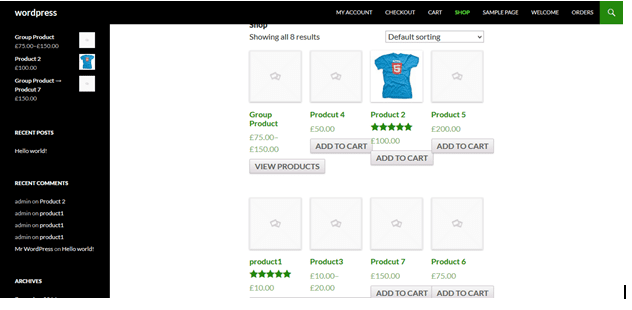
As you can see, some products are showing the default WooCommerce placeholder instead of an actual product image. Let’s fix this by filtering out products that don’t have a featured image set.
Step 1: Open the WooCommerce Plugin Editor
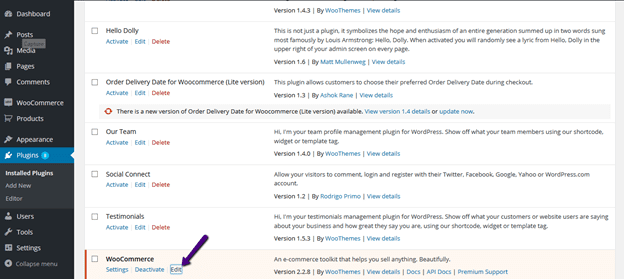
To get started, go to the admin panel of your WordPress site. Navigate to Plugins → Installed Plugins, find WooCommerce in the list, and click the Edit link underneath it.
Step 2: Find the Default Product Loop
In the plugin editor, look for the template file archive-product.php and click on it to open it. Find the following default WooCommerce loop code:
<?php while ( have_posts() ) : the_post(); ?>

    <?php wc_get_template_part( 'content', 'product' ); ?>

<?php endwhile; // end of the loop. ?>
Step 3: Replace With the Filtered Query
Now replace the code above with the following custom query. This uses a meta_query to check for the existence of a _thumbnail_id meta key, which WooCommerce uses to store the featured image. Only products that have this key set will be displayed:
<?php
  $args = array(
    'post_type'      => 'product',
    'stock'          => 1,
    'posts_per_page' => 9,
    'orderby'        => 'date',
    'meta_query'     => array(
      array(
        'key'     => '_thumbnail_id',
        'compare' => 'EXISTS'
      )
    )
  );

  $loop = new WP_Query( $args );
  while ( $loop->have_posts() ) : $loop->the_post();
    wc_get_template_part( 'content', 'product' );
  endwhile;
?>
After saving the file, visit your shop or category page. You’ll notice that only products with actual featured images are now displayed — all placeholder images are gone.
What This Code Does
The key part of this solution is the meta_query parameter. It tells WordPress to only fetch products where the _thumbnail_id meta key exists in the database. This meta key is set by WordPress whenever you assign a featured image to a post or product. If no featured image has been uploaded, this key won’t exist, and the product will be excluded from the query results.
You can also adjust the posts_per_page value to control how many products appear per page, and change the orderby parameter to sort products by date, title, price, or randomly.
Conclusion
Displaying only WooCommerce products that have featured images is a simple but effective way to keep your storefront looking professional. By replacing the default product loop with a custom WP_Query that checks for the _thumbnail_id meta key, you can hide all placeholder images without deleting or unpublishing any products. Just remember to use the child theme override method for production sites so your changes persist through updates.
Frequently Asked Questions
Will this affect my product search results?
No. This change only applies to the product archive template (shop and category pages). Search results, widgets, and other areas of your site remain unaffected.
What if I want to show a specific number of products per page?
You can change the posts_per_page value in the $args array. For example, set it to 12 to show 12 products per page.
Will my changes survive a WooCommerce update?
Not if you edit the plugin file directly. To make your changes update-safe, copy the archive-product.php file to your child theme’s woocommerce/ directory and edit it there instead. WooCommerce automatically uses the child theme version when available.
Can I use this approach to filter products by other criteria? Yes. The meta_query parameter is very flexible. You can filter by any custom field — for example, only showing products with a sale price set, or products with a specific custom attribute.