
Managing product visibility is a routine task for any WooCommerce store owner. Whether you need to temporarily hide products, move them to draft, or republish an entire catalog — updating the status of individual products through the WordPress admin can be painfully slow when you’re dealing with hundreds or thousands of items.
In this tutorial, we’ll walk you through how to bulk update the status of all WooCommerce products using a simple SQL query. This method is fast, reliable, and works even when the built-in bulk editor times out on large stores.
Although we can update status using bulk edit from the Products page, if we have a large number of products, WordPress may give us a timeout error. That’s where SQL queries come in.
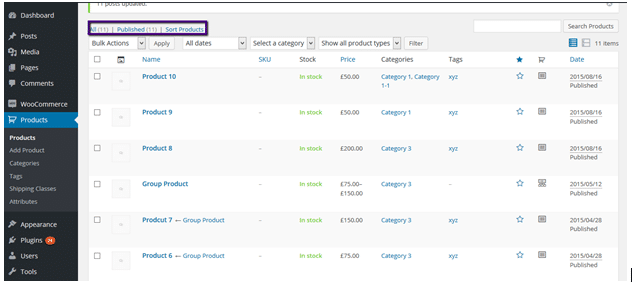
Here are a few products in the store currently marked as “Published”:
Step 1: Change the Status of All Products
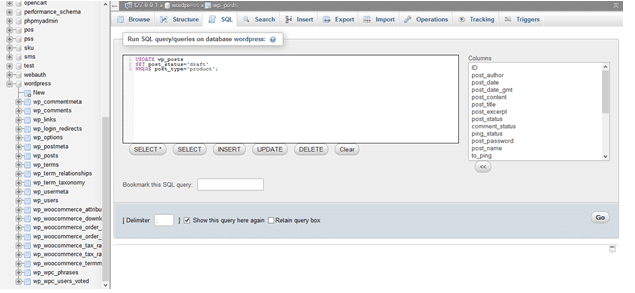
Let’s say you want to change all products from “Published” to “Draft.” To do this, open phpMyAdmin (or any database management tool like Adminer, DBeaver, or TablePlus) and run the following query:
UPDATE wp_posts
SET post_status = 'draft'
WHERE post_type = 'product';
This query targets every record in the wp_posts table where the post_type is “product” and sets the post_status to “draft.”
You can replace “draft” with any valid WordPress post status:
publish – makes the product live on your storefront
draft – hides the product from the storefront
pending – sets the product to pending review
private – makes the product visible only to admins
Step 2: Change the Status of Products in a Specific Category
What if you only want to update products within certain categories? You can do that by joining the wp_term_relationships table:
UPDATE wp_posts p
JOIN wp_term_relationships r ON p.ID = r.object_id
SET p.post_status = 'draft'
WHERE r.term_taxonomy_id IN (9, 10);
Replace 9 and 10 with the actual term taxonomy IDs of the categories you want to target. You can find these IDs in your WordPress database under the wp_term_taxonomy table, or by hovering over a category link in the WordPress admin — the ID appears in the URL.
How to Find Your Category’s Term Taxonomy ID
1. Go to Products → Categories in your WordPress dashboard.
2. Hover over the category name.
3. Look at the URL in your browser’s status bar, you’ll see something like tag_ID=9.
4. Use that number in your SQL query.
Conclusion
Changing the status of WooCommerce products via SQL is the most efficient way to handle bulk updates, especially when the WordPress admin bulk editor struggles with large catalogs. Whether you need to draft your entire inventory or selectively hide products in specific categories, a simple database query gets the job done in seconds. Just remember: back up first, double-check your query, and test on staging whenever possible.
Frequently Asked Questions
Will this query also affect product variations?
Product variations have the post type “product_variation,” not “product.” So this query only affects parent products. If you also need to update variations, run a separate query targeting post_type = ‘product_variation’.
Does this work with custom database prefixes?
Yes. If your WordPress installation uses a custom table prefix (e.g., wp2_ instead of wp_), simply replace wp_posts and wp_term_relationships with your actual table names.
Can I undo this change?
Not automatically. That’s why we strongly recommend taking a full database backup before running any query. If you need to revert, you’ll need to restore from that backup.
Is it safe to run SQL queries on a live store?
It’s best practice to test queries on a staging environment first. If that’s not available, always create a backup and run the query during low-traffic hours.