
WooCommerce shows the product count by default on both the shop page and the categories page. A lot of online store owners prefer to hide this number whether for a cleaner look, to avoid showing low stock counts, or simply because it doesn’t fit their store’s design.
The good news? You can remove it with just three lines of CSS. No plugin needed.
We tested a simple CSS snippet that reliably removes the product count from your WooCommerce shop and category pages.
How to Add the CSS
Add the code below at the very bottom of your theme’s style.css file. Go to: Appearance > Editor > Style.css
Or if you’re using a child theme (recommended), add it to your child theme’s style.css to make sure it survives theme updates.
Alternatively, you can paste it under Appearance > Customize > Additional CSS – no file editing needed.
.woocommerce-result-count {
    display: none;
}
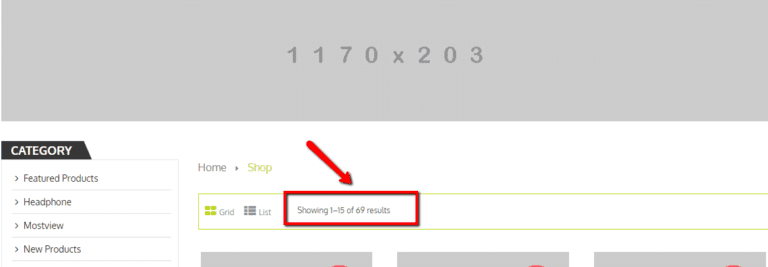
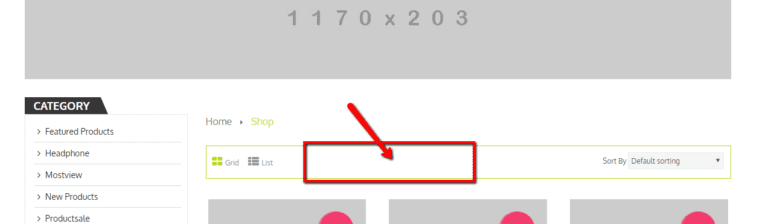
That’s it. Once you save, the product count text (e.g. “Showing 1–12 of 36 products”) will disappear from your shop and category pages immediately.
Before It looks like
After adding the code
Conclusion
Hiding the WooCommerce product count is one of the quickest store customizations you can make, just three lines of CSS and it’s done. No plugin, no PHP, no complexity.
If you need any other WooCommerce customizations whether it’s checkout tweaks, layout changes or anything else, Themelocation has you covered. Feel free to reach out!
Frequently Asked Questions
Will this affect anything else on my store besides the count?
No. The .woocommerce-result-count class targets only the product count text. It has zero effect on your products, prices, sorting dropdown, or any other element on the page.
Does this work on both the Shop page and Category pages?
Yes. WooCommerce uses the same .woocommerce-result-count class on both the main shop page and individual category archive pages, so one snippet hides it everywhere at once.
Will this break after a WooCommerce update?
No. CSS overrides are completely independent of WooCommerce updates. Your change will stay in place regardless of which version of WooCommerce you’re running.
What if the product count is still showing after I add the CSS?
Your theme may be overriding the style. Try adding !important to the rule like this:
.woocommerce-result-count {
    display: none !important;
}
I want to remove the count from one specific category page only. Is that possible?
Yes. WooCommerce adds a unique body class for each category page based on its slug (e.g. term-jackets). You can target it specifically:
.term-your-category-slug .woocommerce-result-count {
    display: none;
}
Replace your-category-slug with the actual slug of your category. You can find the slug under Products > Categories next to the category name.