

Want to show a popup notification when a customer adds a product to cart in WooCommerce? You can do it with a simple PHP and jQuery snippet, no plugin required.
By default, many WooCommerce themes (including the popular Storefront theme) display the “added to cart” message as a banner at the top or bottom of the page. The problem? Customers often miss it, especially on mobile. A popup gets their attention immediately, right where they’re looking.
Why a Popup Notification Works Better
Do you want to enhance your shop’s user experience when a customer adds a product to cart?
A simple way to do this is by having a popup or overlay notification for every product added to cart. For some themes, this is the default way to notify users that their chosen product has been successfully added to the cart. However, many other themes including the very popular Storefront theme, show this notification as a banner at the bottom or top of the product page instead.
By adding a popup, your customers get an immediate visual confirmation that their action was completed without having to scroll up or down to find the message. This small UX improvement reduces confusion and can even help lower cart abandonment.
Before You Start: Getting Ready
Before doing any code modifications, it’s always a good idea to take a full backup of your site and make sure that you have FTP access or access to cPanel, Plesk, or another control panel with a file manager.
If you’re wondering what is the best way to add code snippets to your site, always use your child theme’s functions.php or the free Code Snippets plugin — never edit the parent theme directly.
Add the Code Snippet
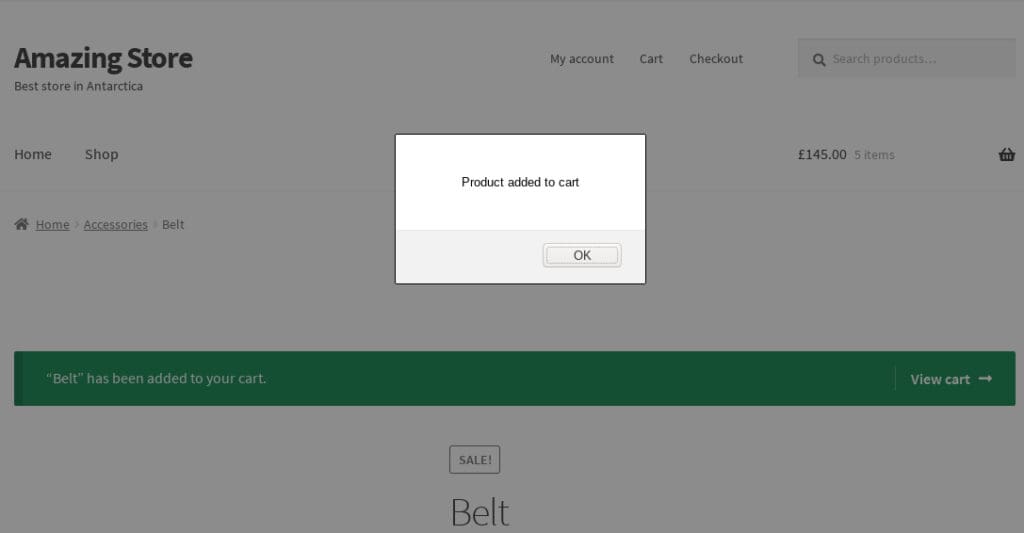
Use the code snippet below to add the “Added to Cart” popup notification to your WooCommerce store. Add it to your child theme’s functions.php or via the Code Snippets plugin:
add_action('wp_footer', 'single_added_to_cart_event');

function single_added_to_cart_event()
{
    if( isset($_POST['add-to-cart']) && isset($_POST['quantity']) ) {
        // Get added to cart product ID (or variation ID) and quantity (if needed)
        $quantity   = $_POST['quantity'];
        $product_id = isset($_POST['variation_id']) ? $_POST['variation_id'] : $_POST['add-to-cart'];

        // JS code goes here below
        ?>
        <script>
        jQuery(function($){
            alert('Product added to cart');
        });
        </script>
        <?php
    }
}
What This Code Does
Here’s a plain-English breakdown of what’s happening:
- PHP detects the add-to-cart action: When a customer clicks “Add to Cart”, the snippet checks for the add-to-cart and quantity values in the POST request. This tells us a product was just added.
- It grabs the product ID: The code gets the product ID or variation ID (for variable products like size/color variants) so you can extend this later to show the specific product name if you want.
- jQuery fires an alert popup: Once the product is added, a simple browser alert box displays with your custom message. You can change the text inside alert(‘Product added to cart’); to anything you like for example, alert(‘Great choice! Your item is in the cart.’);
How to Customize the Popup Message
To change the message that appears in the popup, simply edit this line in the snippet:
alert('Product added to cart');Replace Product added to cart with any message you want. For example:
alert('Item added! Ready to checkout?');Or if you want to reference the store name:
alert('Added to your cart. Keep shopping or head to checkout!');Wrapping Up
With this simple code snippet, you can add an instant popup notification to let customers know their product was successfully added to the cart. No plugin needed, no monthly fees just clean, lightweight code.
Of course, this simple method doesn’t give the feature-rich results of dedicated plugins like WPC Added To Cart Notification for WooCommerce or YITH WooCommerce Added to Cart Popup — those offer custom styling, product thumbnails, countdown timers, and more. But if you just need a quick, no-fuss solution, this snippet works perfectly. And with some jQuery knowledge, you can use it as a base to build your own fully custom notification.