
Want to bulk merge WooCommerce categories into one? The fastest way is to use the Term Management Tools plugin, select the categories you want to combine, choose “Merge” from the bulk actions dropdown, type the name of the final category, and hit Apply. All products from the merged categories move into one automatically.
But that’s not your only option and depending on how many categories you’re dealing with, it might not even be your best one.
In this guide, I’ll walk you through 4 methods to merge WooCommerce product categories in bulk, from the quickest free plugin to more powerful tools built for large stores. I’ve also added a manual approach for anyone dealing with just a handful of categories.
Why Would You Need to Merge WooCommerce Categories?
This is something that happens to almost every growing store. Here are the situations I see most often when working with WooCommerce clients:
You imported products from another platform and ended up with duplicate or overlapping categories “T-Shirts”, “Tshirts”, and “T Shirts” all existing separately, each with a chunk of your products.
Your store structure evolved over time. What started as 5 categories slowly became 40, and now you have thin categories with only 2–3 products each that would be better combined.
You ran a product import and it created new categories automatically. Most CSV importers create categories on the fly after a big import, it’s common to have a mess of categories you didn’t plan for.
You’re rebranding or restructuring your store’s navigation. Merging several niche categories into a broader parent category can make your shop easier to browse.
Whatever your reason, doing this manually by opening each product, unchecking the old category, checking the new one, saving is not a realistic option once you have more than a dozen products. That’s where bulk merging comes in.
Before You Start: Back Up Your Site
I’ll say this every time: always take a full backup before making bulk changes to your store.
Merging categories is a database operation. It reassigns taxonomy relationships for potentially hundreds of products at once. If something goes wrong, a plugin conflict, a bad merge target. you’ll want to be able to restore quickly.
Use your hosting control panel, a plugin like UpdraftPlus, or ask your developer to take a backup before starting. At Themelocation, this is the first thing we do before any bulk store operation for our clients.
Quick Comparison: Which Method Should You Use?
| Situation | Best Method |
| Quick merge, small store, free option | Term Management Tools |
| Modern free alternative, actively maintained | TaxoPress |
| Large store, keyword/filter-based merging | WP Sheet Editor |
| Agency or complex multi-store management | Bulk Category Editor (WooCommerce) |
| Just a few products, no plugins | Manual approach |
Method 1: Term Management Tools Plugin
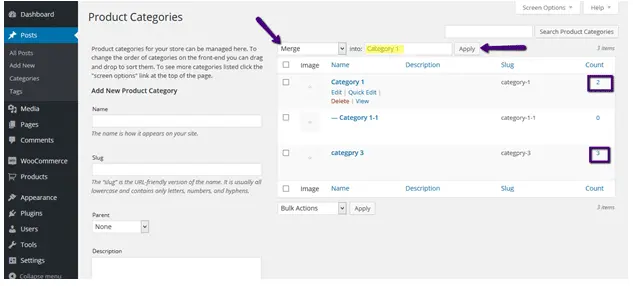
This is the plugin I originally covered back in 2015 and it still works in 2026. If you need to merge a handful of categories quickly and don’t want to pay for anything, this is your best bet.
Plugin: Term Management Tools | Free, available on WordPress.org
What it does: Adds a “Merge” option to the Bulk Actions dropdown on your WooCommerce product categories screen. Select the categories you want to combine, merge them into one target category, and all products are reassigned automatically.
Step-by-Step Instructions
Step 1: Install and activate the Term Management Tools plugin from the WordPress plugin repository (Plugins > Add New > search “Term Management Tools”).
Step 2: Go to Products > Categories in your WordPress dashboard.
Step 3: Check the checkbox next to each category you want to merge. For example, tick “T-Shirts”, “Tshirts”, and “T Shirts”.
Step 4: In the Bulk Actions dropdown at the top of the list, select “Merge”.
Step 5: Click Apply.
Step 6: A text field will appear asking for the name of the category you want to merge everything into. Type the name of your target category — for example, T-Shirts.
Step 7: Click Apply again to confirm.
That’s it. Refresh the categories list and you’ll see one consolidated category containing all the products from the merged ones.
What Happens to the Merged Categories?
The categories you selected (other than the target) are deleted. Their products are moved into the target category. Any subcategories under deleted categories are not automatically moved — you’d need to reassign those manually.
Honest Note About This Plugin
Term Management Tools is a lightweight, no-frills plugin. It does its job well for simple merges. However, it hasn’t been updated as frequently as some store owners would like, and it doesn’t have a visual interface for large-scale category management.
If you’re managing dozens or hundreds of categories, the next methods will serve you better.
Method 2: TaxoPress
TaxoPress is the most actively maintained free option for taxonomy management in WordPress and WooCommerce in 2026. Think of it as a more modern, full-featured replacement for Term Management Tools.
Plugin: TaxoPress Free version available, Pro version for advanced features
Beyond just merging, TaxoPress lets you bulk edit, merge, and delete categories and tags across your entire store including WooCommerce product categories.
How to Merge Categories with TaxoPress
Step 1: Install and activate TaxoPress from Plugins > Add New.
Step 2: In your WordPress dashboard, go to TaxoPress > Terms.
Step 3: Select Product Categories from the taxonomy dropdown.
Step 4: Check the categories you want to merge.
Step 5: Use the bulk action to Merge the selected terms, you’ll be prompted to select or type the target category name.
Step 6: Confirm and save.
TaxoPress also gives you a cleaner interface than Term Management Tools, with better visibility into how many products are assigned to each category before you merge.
Method 3: WP Sheet Editor
If you’re dealing with a large store, hundreds of categories and you need to find and merge categories based on names, keywords, or other criteria, WP Sheet Editor is the most powerful free-to-try option available.
Plugin:WP Sheet Editor – Taxonomy Terms Free version available, Pro for full features
This plugin gives you a spreadsheet-style interface (think Google Sheets, but inside WordPress) to manage all your taxonomy terms — including WooCommerce product categories.
Why It’s Powerful for Large Stores
The standout feature for large category merges is the search-then-merge workflow:
Step 1: Go to WP Sheet Editor > Edit Categories, Tags, Attributes, Taxonomies.
Step 2: Click on “Edit Product Categories” to open the categories spreadsheet.
Step 3: Use the Search tool to filter categories — for example, search for all categories containing the word “Books” or all categories with fewer than 5 products.
Step 4: Select all filtered results.
Step 5: Click “Merge Terms” from the toolbar.
Step 6: Enter the target category name and apply.
This is incredibly useful when you need to merge categories based on a pattern — like consolidating all subcategories of a certain type, or cleaning up categories created by automated imports.
You can also use WP Sheet Editor to bulk edit category names, descriptions, slugs, and images all from the same spreadsheet view which makes it a great all-in-one cleanup tool after a product import.
Method 4: Bulk Category Editor for WooCommerce
If you want the most comprehensive, store-specific solution and you’re managing a large WooCommerce store professionally, the Bulk Category Editor extension from the official WooCommerce Marketplace is worth considering.
Plugin: Bulk Category Editor for WooCommerce Paid extension from WooCommerce
This is built specifically for WooCommerce (not just generic WordPress taxonomies), and it goes well beyond just merging categories.
What Makes It Different
- Table-based interface: see your entire category tree in one organized view, with color-coded subcategories
- Move Products tab: reassign products between categories in bulk with fine-grained control (add, replace, or remove category assignments per product)
- Import & Export: sync your category structure across multiple WooCommerce stores, ideal for agencies managing several client stores
- Drag and drop reordering: visually reorganize your category hierarchy
- Advanced filters: filter products by category, attributes, price, and more before making bulk changes
When Should You Use This?
This extension is best for agencies, large stores with complex category hierarchies, or anyone doing regular category maintenance as part of store management. If you’re doing a one-time cleanup, the free plugins above will do the job fine. But if category management is an ongoing task for your store, the official extension pays for itself quickly in saved time.
Method 5: The Manual Approach
If you’re only merging two or three categories with a small number of products, you might not need a plugin at all.
Here’s the manual process:
Step 1: Go to Products > All Products.
Step 2: Filter products by the category you want to remove (use the filter dropdowns at the top of the product list).
Step 3: Select all filtered products using the checkbox at the top.
Step 4: From Bulk Actions, choose “Edit” and click Apply.
Step 5: In the bulk edit panel, find the Categories field.
Step 6: Add the target category to all selected products.
Step 7: Save changes.
Step 8: Go back to Products > Categories, find the old category, and delete it.
This works fine for 10–20 products. For anything larger, use one of the plugin methods above. the manual approach is too time-consuming and prone to mistakes at scale.
Conclusion
Cleaning up your WooCommerce category structure is one of those maintenance tasks that pays off immediately. Better store navigation, cleaner product organization, and a more professional shopping experience for your customers.
If you’d rather hand this off to someone who does it every day. our team at Themelocation handles WooCommerce store cleanup, category restructuring, and bulk product management for agencies and store owners regularly. Contact us here and we’ll get it sorted out for you.
Frequently Asked Questions
Will merging categories delete my products?
No. Merging categories only changes which category your products are assigned to. The products themselves are completely untouched.
Can I undo a category merge?
Not automatically, this is why a backup is so important. There’s no built-in “undo merge” button in any of these plugins. Your backup is your undo button.
Does merging categories affect product URLs?
It depends on your permalink structure. If your product URLs include the category slug (e.g. /product-category/old-name/product-name/), reassigning products to a new category may change those URLs. Check your WooCommerce permalink settings under WooCommerce > Settings > Permalinks.
Can I merge WooCommerce tags the same way?
Yes. All four methods above work with WooCommerce product tags and custom taxonomies, not just product categories.
What if I have hundreds of categories to merge?
WP Sheet Editor is your best bet, it lets you filter and merge categories in bulk based on keywords or product count, which is much faster than selecting them one by one.
Will this work with WooCommerce HPOS?
Yes. Category merging operates on taxonomy data, which is completely separate from the order storage system. HPOS doesn’t affect any of these methods.