
ant to set a minimum order amount in WooCommerce? You have three ways to do it: using a PHP code snippet in functions.php, installing a plugin, or setting it on a per-product basis via the inventory settings. The code method is the quickest and requires no plugin — just a few lines added to your theme.
Setting a minimum order value is one of the most practical decisions you can make for your store’s profitability. It ensures that every order covers your base costs — shipping, handling, payment processing fees — while encouraging customers to add more to their cart before checking out.
Method 1: Set a Store-Wide Minimum Using Code (Recommended)
This is the most direct approach — a PHP snippet that blocks checkout and shows an error message if the cart total falls below your defined minimum.
Go to your WordPress dashboard and navigate to:
Appearance > Theme Editor > Theme Functions (functions.php)
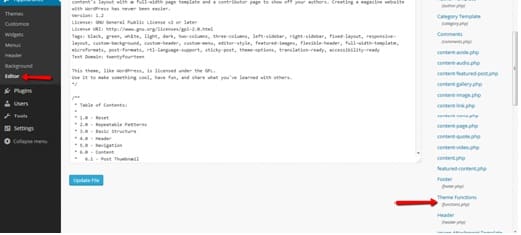
Scroll to the very end of the existing code and paste the following snippet, then click Update File:
add_action( 'woocommerce_checkout_process', 'wc_minimum_order_amount' );

function wc_minimum_order_amount() {
    $minimum = 50; // Set your minimum order amount here

    if ( WC()->cart->subtotal < $minimum ) {
        wc_add_notice(
            sprintf(
                'You must have an order with a minimum of %s to place your order.',
                wc_price( $minimum )
            ),
            'error'
        );
    }
}
To customize: Replace 50 with your desired minimum order value. The amount uses your store’s default currency automatically via wc_price().
The Result
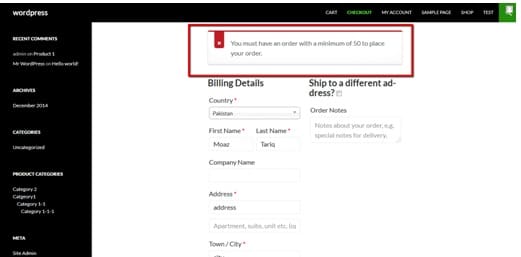
When a customer tries to place an order with a cart total below your minimum, WooCommerce will display a clear error message at the top of the checkout page — blocking the order until the requirement is met.
Method 2: Set Minimum Order Amount Using a Plugin
If you prefer a no-code approach, several plugins handle minimum order amounts cleanly. Here are the best options:
WooCommerce Min/Max Quantities
One of the most straightforward plugins for this purpose. It allows you to set both minimum and maximum quantities per product, and a minimum order amount for the entire store.
- Go to Plugins > Add New and search for “WooCommerce Min/Max Quantities”
- Install and activate the plugin
- Go to WooCommerce > Settings > Min/Max Quantities
- Enter your desired minimum order amount and save
Booster for WooCommerce
A comprehensive all-in-one plugin with over 110 features including minimum order amounts, multi-currency display, custom checkout fields, PDF invoices, and more. If you need several WooCommerce customizations beyond just minimum orders, Booster is a solid choice.
- Available free on WordPress.org: Booster for WooCommerce
- No coding required — all settings managed through the plugin’s admin panel
Method 3: Set Minimum Order Amount Per Product
WooCommerce also allows you to set a minimum quantity per product — useful if you sell wholesale or in bulk, and specific products require a minimum quantity to purchase.
- Go to Products > All Products and open the product you want to edit
- Scroll down to the Product Data panel
- Click on the Inventory tab
- Set the Minimum purchase quantity field to your desired value
- Click Update to save
Which Method Should You Use?
| Your Situation | Best Method |
|---|---|
| Store-wide minimum cart value, comfortable with code | Method 1 (Code snippet) |
| Store-wide minimum, no coding preferred | Method 2 (Plugin) |
| Minimum quantity for a specific product | Method 3 (Per-product inventory) |
| Need multiple WooCommerce customizations | Booster for WooCommerce |
Things to Consider Before Setting a Minimum Order Amount
Don’t set it too high. If your minimum is significantly above your average order value, many customers will abandon checkout rather than add more items. Check your store’s average order value in WooCommerce reports first, and set a minimum that’s achievable for most customers.
Consider your shipping costs. A common strategy is to set the minimum order amount at or slightly above the point where shipping costs are covered — so that every order is at minimum cost-neutral to fulfill.
Communicate it clearly. Let customers know about the minimum before they reach checkout — on the cart page, in a notice bar, or near product prices. Unexpected blocks at checkout frustrate customers.
Test it before going live. After adding the code or configuring the plugin, do a test order with a low-value cart to confirm the error message appears correctly, and another with an order above the minimum to confirm checkout proceeds normally.
Conclusion
Setting a minimum order amount in WooCommerce is a smart business decision that protects your margins and encourages higher cart values. Here’s a quick recap of your options:
- Code snippet → fastest, no plugin, add to
functions.php - Plugin → easiest for non-developers, WooCommerce Min/Max Quantities or Booster
- Per-product → for wholesale or bulk-specific minimum quantities
Whatever method you choose, always test the minimum before going live and make sure customers are informed of the requirement before they reach checkout.